Optimization & Compression
Make your Needle Engine projects load faster and run smoother. Production builds automatically compress textures and meshes, generate progressive LODs, and minimize file sizes — all with no code changes needed.
Also See
- FastHDR Environment Lighting - 10x faster HDR loading, 95% less VRAM, zero CPU processing
- gltf-progressive - Standalone progressive loading for any three.js project
- Deployment Platforms - Deploy to Netlify, Vercel, GitHub Pages, and more
- Export Guide - Best practices for assets
Guides
Texture Compression: KTX2, ETC1S, UASTC & WebP
Compare compression formats, configure global settings, and override compression per texture in Unity and Blender.
Mesh Compression: Draco & Meshopt
Choose between Draco and Meshopt, configure mesh simplification, and reduce vertex count.
Progressive Loading & Automatic LODs
Load low-resolution textures first and upgrade on demand. Automatically generate mesh LODs for better performance. Configure per-texture LOD overrides.
Production Build Settings
Understand development vs production builds, use the Unity Build Window, preview compression during development, and configure the Compression & LOD Settings component.
Production Build Setup
Required: Install toktx
To make production builds, you need toktx installed for texture compression using the KTX2 supercompression format.
Installation:
- Go to the toktx Releases Page
- Download and install the latest version (v4.1.0 or newer)
- Restart Unity after installation
Troubleshooting
If you've installed toktx and it's in your PATH but can't be found, restart your machine and try building again.
Troubleshooting: Toktx cannot be found (Windows)
Make sure you have added toktx to your system environment variables. You may need to restart your computer after adding it to refresh the environment variables.
Default install location: C:\Program Files\KTX-Software\bin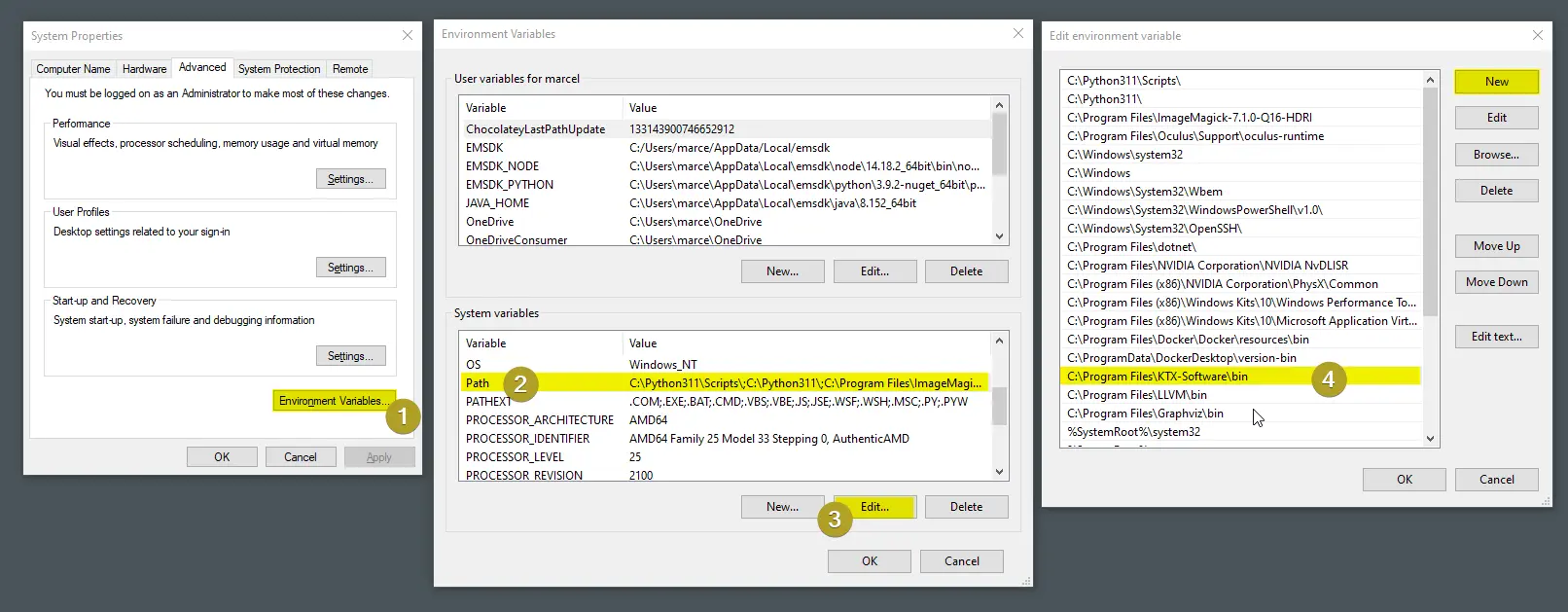
Advanced: Custom glTF extensions
If you plan on adding custom glTF extensions, building for production requires handling those in gltf-transform. See @needle-tools/gltf-build-pipeline for reference.
Optimization Best Practices
Texture Optimization
File size matters:
- Use the smallest texture resolution that looks good
- Enable progressive loading for large textures — loads low-res first, streams full quality on demand. Can be configured per texture.
- Use appropriate compression format (ETC1S vs UASTC vs WebP)
- Avoid unnecessarily large texture atlases
GPU memory matters:
- Use KTX2 formats (ETC1S or UASTC) instead of WebP when possible
- WebP textures are uncompressed in GPU memory
Mesh Optimization
Needle Engine production builds automatically apply Draco or Meshopt compression and generate automatic mesh LODs — so your meshes are compressed and level-of-detail optimized out of the box.
Reduce vertex count further:
- Use mesh simplification to reduce vertex counts in production builds
- Remove unnecessary geometry before export
Reduce draw calls:
- Combine meshes when possible
- Use instancing for repeated objects
- Minimize unique materials
Remove Unused Features
Several heavy modules are only downloaded when they're actually used. Removing unused features from your scene avoids unnecessary downloads:
- Remove unused colliders — The Rapier physics engine (~2 MB Wasm) loads when any collider or rigidbody is present. If you don't need physics, remove all colliders (including trigger colliders) to save ~2 MB.
- Remove unused postprocessing volumes — Postprocessing effects are only loaded when a volume is active.
- Remove unused MaterialX materials — The MaterialX loader is only loaded when MaterialX materials are present.
Tips
Removing unused physics colliders is one of the easiest wins. Double-check that you haven't left colliders on objects that don't need them.
Scene Optimization
Reduce initial load time:
- Enable progressive texture loading and automatic mesh LODs
- Use
SceneSwitcherto split your project into a lightweight main scene that only contains the scene switcher and loads content scenes on demand — this keeps the initial download small - Use
AssetReferencefor on-demand loading of individual assets — see Load 3D Web Assets at Runtime for all four loading APIs, including loading from a CDN or external URL
Improve runtime performance:
- Avoid physics colliders if you don't need physics (saves ~2 MB Rapier Wasm download)
- Use simpler collider shapes when physics is required
- Disable unnecessary components
- Use object pooling for frequently spawned objects
- Profile with browser DevTools and Needle Inspector
Troubleshooting
Build errors during compression
Problem: Production build fails during compression
Solution:
- Toggle Development Build on in Build Settings to get unstuck immediately
- Report the bug to Needle support
- Check that toktx is installed and in your PATH
Related Documentation
- VR Performance Optimization - VR-specific profiling, bottlenecks, and Quest tips
- gltf-progressive - Progressive loading for any three.js project with advanced configuration and API reference
- Deployment Platforms - Deploy to Netlify, Vercel, GitHub Pages, and more
- Export Guide - Best practices for exporting 3D assets
- Debugging Parameters - Performance profiling and debugging
- Needle Inspector - Chrome DevTools for three.js
- Needle Mesh Baker - Reduce meshes and bake PBR textures in the browser
- Help & Community - Get support and ask questions