Progressive Loading & Automatic LODs
Optimization & Compression
This guide is part of Optimization & Compression. See also: Texture Compression, Mesh Compression, Build Settings.
Needle Engine production builds automatically generate progressive textures and mesh LODs to dramatically reduce initial load times and improve runtime performance.
Progressive Texture Loading (Texture LODs)
Significantly reduce initial loading time by loading low-resolution textures first (128px by default), then upgrading to full quality when visible. This can reduce initial download size by up to 90%.
Progressive loading is enabled by default in production builds. It is not applied to lightmaps or skybox textures.
See gltf-progressive for detailed information on how progressive loading works and advanced configuration options.
Benefits:
- Much faster initial load times (small preview textures load first)
- Full quality loaded on-demand based on what's visible on screen
- Seamless quality transitions — users see content immediately
- On mobile, high-resolution textures are automatically skipped to save bandwidth
Don't disable progressive loading globally
If a specific texture doesn't look right with progressive LODs, override just that texture instead of disabling the feature for the entire project. Keeping progressive loading enabled for most textures dramatically reduces loading times. See the per-texture override options below.
Per-Texture LOD Overrides
You can enable or disable LOD generation for individual textures without changing the global setting. This is the recommended approach when only a few textures need different treatment.
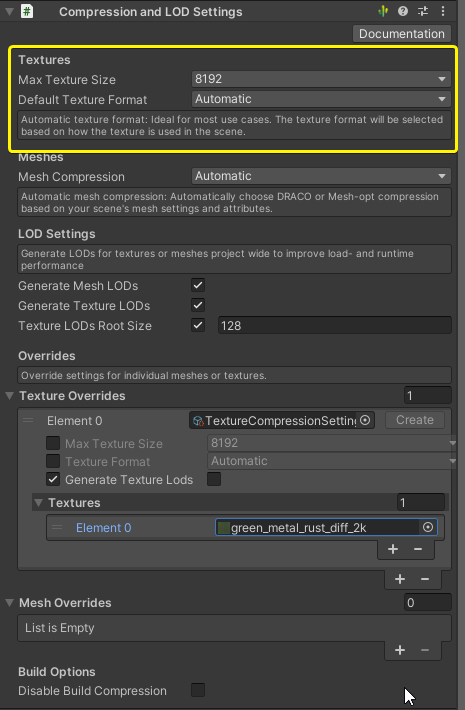
Unity: Enable progressive texture loading
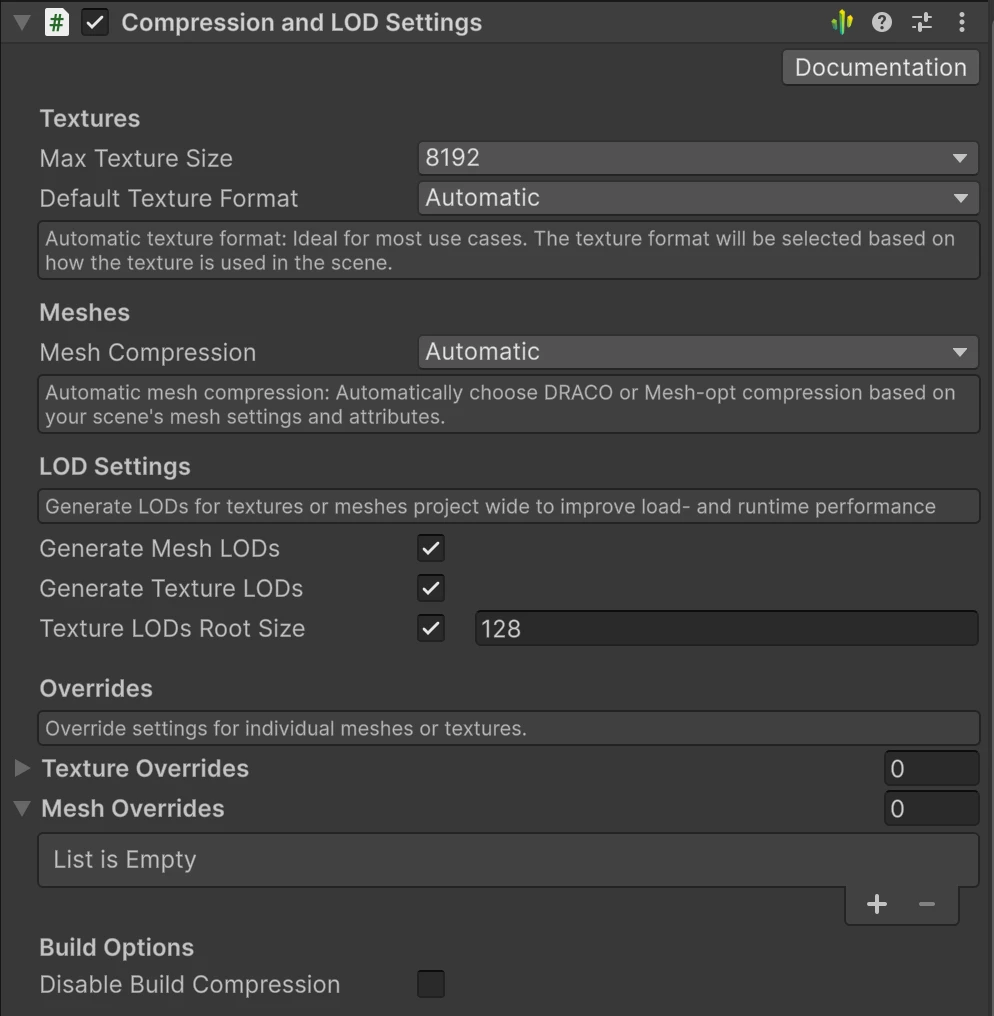
The Compression and LOD Settings component (on the Needle Engine / ExportInfo object) controls progressive loading globally. You can also override LOD generation for individual textures — for example, disable LODs for a specific texture while keeping them enabled for everything else.
- Generate Texture LODs — Enable/disable progressive loading for all textures (default: on)
- LODs Max Size — Resolution of the initially loaded preview texture (default: 128px)
- Per-texture overrides — Toggle LOD generation on or off for individual textures
Blender: Enable progressive texture loading
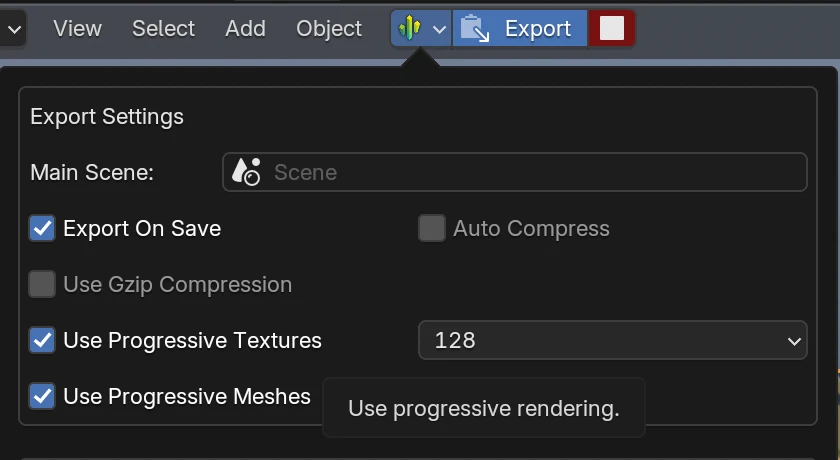
Open the Needle Engine Project Settings to configure progressive texture loading globally:
- Use Progressive Textures — Enable/disable progressive loading (default: on)
- Progressive Texture Size — Preview size for initial texture load (default: 128px, options: 32–4096)
Per-texture compression settings (max size, format) can be configured per material in Properties → Material tab → Needle Material Settings. See per-texture compression overrides for details.
Learn More
Progressive loading is powered by @needle-tools/gltf-progressive, which ships with Needle Engine. It's also available as a standalone package for any three.js project.
Automatic Mesh LODs (Level of Detail)
Since Needle Engine 3.36, mesh LODs are automatically generated during builds and chosen at runtime based on mesh density and screen size.
Key Benefits:
- Faster initial loading time
- Better rendering performance (fewer vertices on screen)
- Faster raycasting with LOD meshes
- Automatic on-demand loading
See gltf-progressive for in-depth technical details on how mesh LODs are generated and selected at runtime.
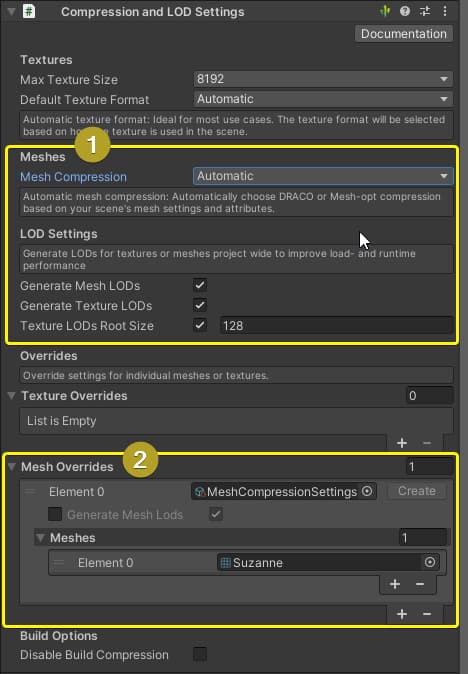
Unity: Control LOD generation
Use the Compression & LOD Settings component to control LOD generation for all meshes or individual meshes.
Blender: LOD/Progressive Meshes
Open the Needle Engine Project Settings, under Export Settings you can enable or disable progressive mesh loading.
Related Documentation
- Texture Compression — KTX2, ETC1S, UASTC & WebP, per-texture overrides
- Mesh Compression — Draco & Meshopt compression
- Production Build Settings — Build types and build window
- gltf-progressive — Progressive loading for any three.js project with advanced API reference