Mesh Compression
Optimization & Compression
This guide is part of Optimization & Compression. See also: Texture Compression, Progressive Loading & LODs, Build Settings.
Production builds compress meshes to reduce file size and improve loading times.
Choosing Between Draco and Meshopt
| Format | Draco | Meshopt |
|---|---|---|
| GPU Memory Usage | Medium | Low |
| File Size | Lowest | Low |
| Animation compression | No | Yes |
Quick Guide:
- Static meshes: Use Draco for smallest file size
- Animated meshes: Use Meshopt (supports animation compression)
By default, production builds use Draco compression. Use the MeshCompression component to choose between Draco and Meshopt per exported glTF.
Configuring Mesh Compression
Unity: Mesh compression settings
Use the Compression & LOD Settings component to select compression type:
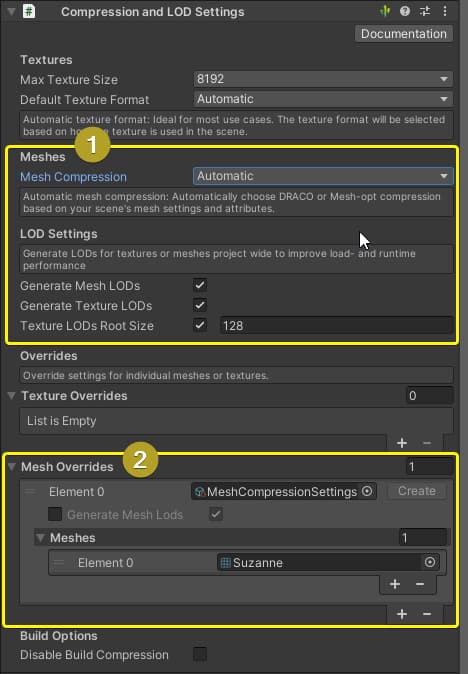
- Current scene: Add component anywhere in your root scene
- Prefab or NestedGltf: Add to a
GltfObjector the prefab referenced by your components - Referenced scene: Add to the referenced scene that is exported
Mesh Simplification
Reduce vertex count automatically in production builds to improve performance.
Unity: Mesh simplification to reduce vertex count
Use the Compression & LOD Settings component to configure mesh simplification for production builds. Append ?wireframe to your URL to preview meshes in the browser.
Related Documentation
- Texture Compression — KTX2, ETC1S, UASTC & WebP
- Progressive Loading & LODs — Automatic mesh LODs and texture LODs
- Production Build Settings — Build types and build window