Texture Compression
Optimization & Compression
This guide is part of Optimization & Compression. See also: Mesh Compression, Progressive Loading & LODs, Build Settings.
Production builds compress textures using KTX2 (ETC1S or UASTC) or WebP depending on your settings and quality requirements.
Choosing Between ETC1S, UASTC and WebP
| Format | ETC1S | UASTC | WebP |
|---|---|---|---|
| GPU Memory Usage | Low | Low | High (uncompressed) |
| File Size | Low | High | Very low |
| Quality | Medium | Very high | Depends on quality setting |
| Typical usage | Works for everything, best for color textures | High-detail data textures: normal maps, roughness, metallic | Files where ETC1S quality is insufficient but UASTC is too large |
Quick Guide:
- Color textures, UI: Use ETC1S for small file size
- Normal maps, detail textures: Use UASTC for maximum quality
- Photography, detailed textures: Use WebP if ETC1S quality isn't sufficient
Setting Compression Per Texture
You can override compression settings for individual textures — including compression format, maximum resolution, and progressive LOD generation — without changing the global defaults. This means you don't need to turn off features like progressive loading globally just because one or two textures need different settings.
Unity: Global compression settings
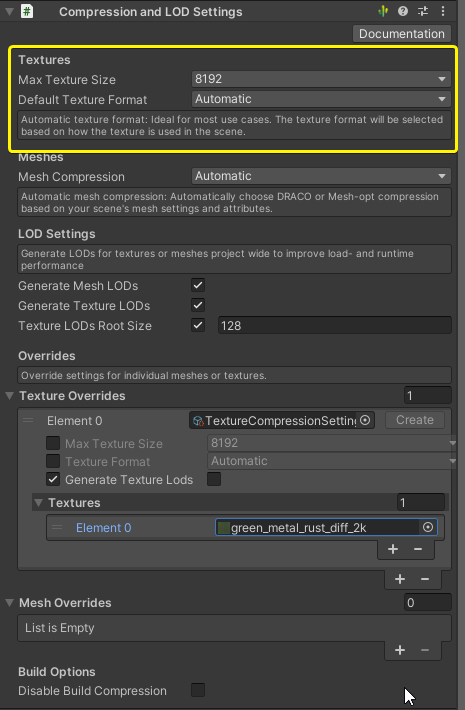
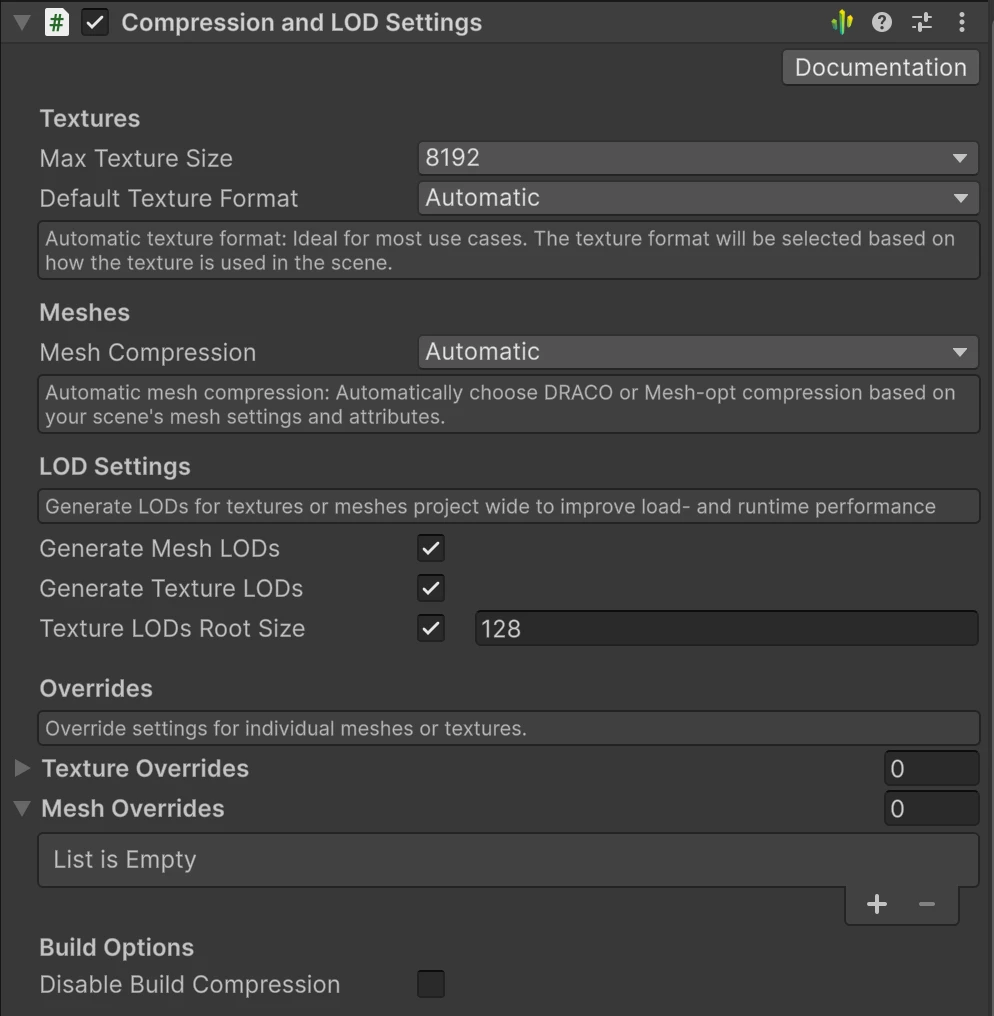
The Compression and LOD Settings component on the Needle Engine / ExportInfo object controls the default compression and LOD settings for all textures in the export:
Unity: Per-texture compression and LOD overrides
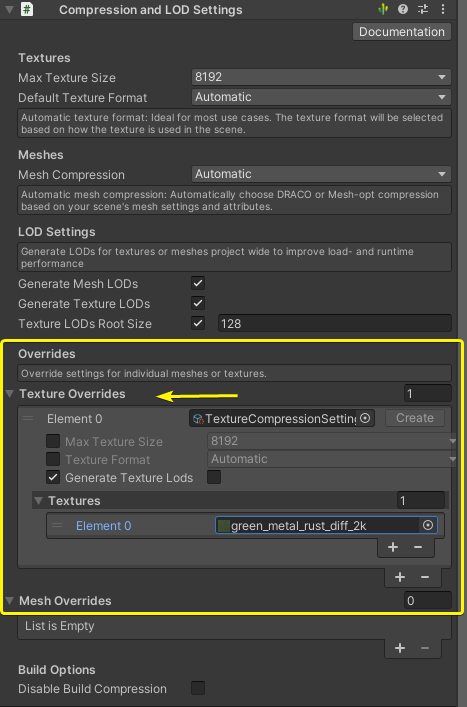
On the same Compression and LOD Settings component, use the per-texture overrides section to customize individual textures. Assign any texture you want to override and configure:
- Compression format — Choose between Automatic, ETC1S, UASTC, or WebP per texture
- Max size — Limit the maximum resolution for specific textures (e.g. 1024 instead of 8192)
- LOD generation — Enable or disable progressive texture LOD generation per texture
This is useful when most textures work great with the defaults, but a few need special handling — for example, disabling LODs for a small UI texture, or forcing UASTC on an important normal map.
Blender: Per-texture compression overrides
Per-texture compression settings are available in two places:
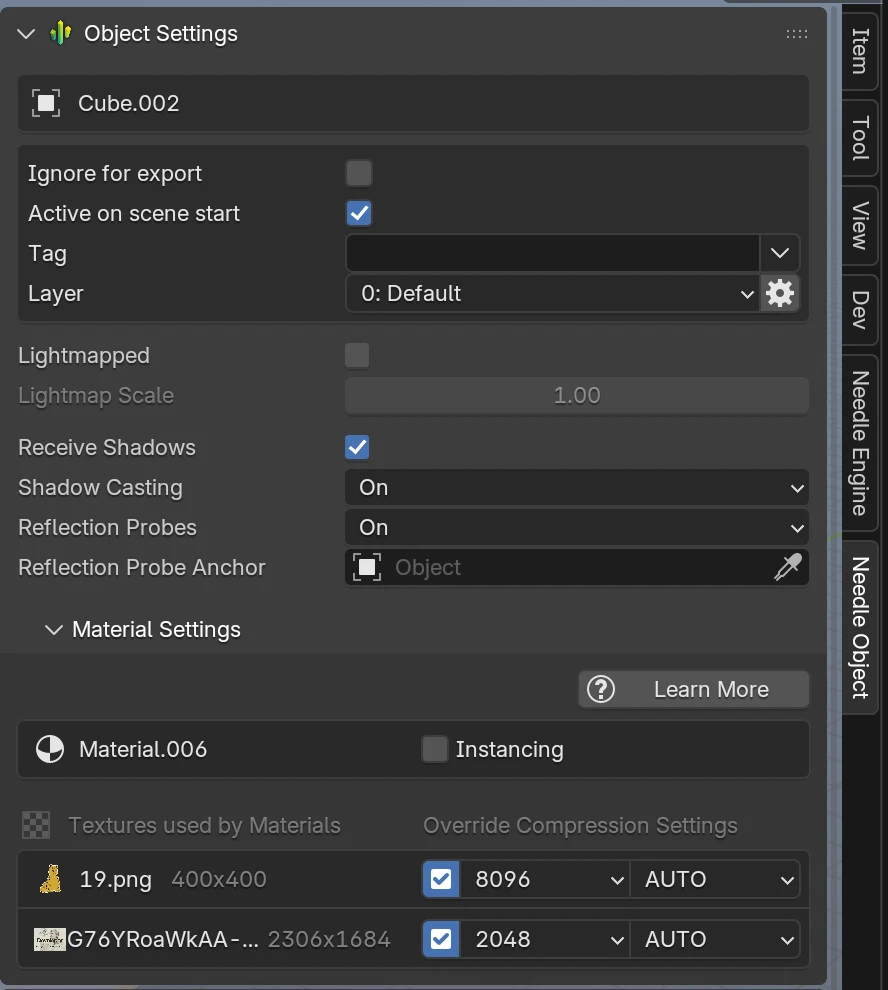
Needle Object panel (Viewport Sidebar → Needle Object tab): At the bottom of the panel, the Material Settings section lists all textures used by the object's materials with inline compression overrides (max size, compression format). This is a quick way to see and adjust all textures for an object at once.
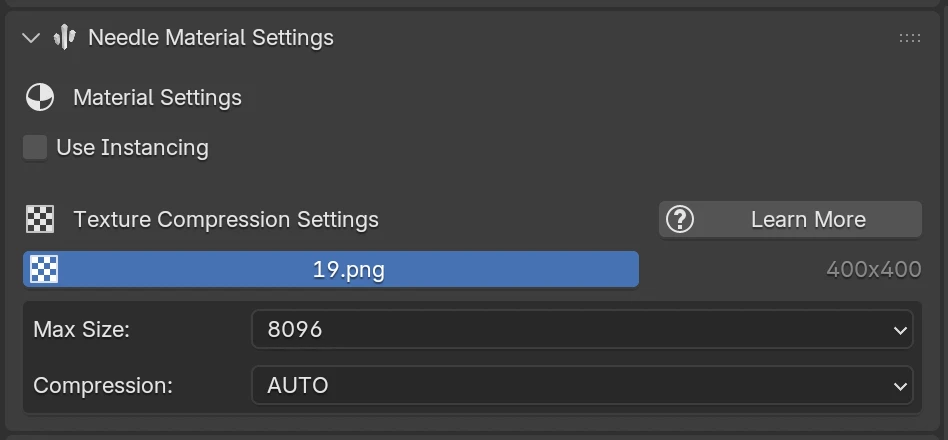
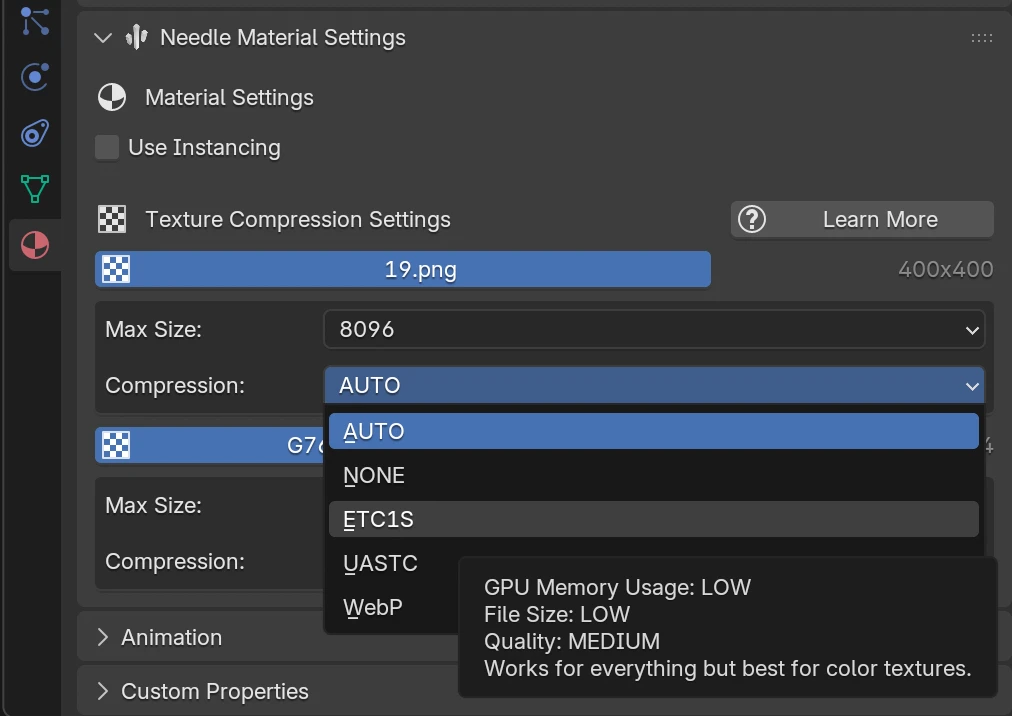
Properties panel → Material tab → Needle Material Settings: Each texture used by the selected material is listed with an override toggle. Enable the override to customize:
- Max Size — Limit the maximum resolution for that texture
- Compression format — Choose between Auto, None, ETC1S, UASTC, or WebP
- Quality — Adjust WebP quality (when using WebP compression)
The following screenshots show the per-texture compression options in the Blender material panel:
Related Documentation
- Progressive Loading & LODs — Texture LODs, mesh LODs, and per-texture LOD overrides
- Mesh Compression — Draco & Meshopt compression
- Production Build Settings — Build types and build window
- gltf-progressive — Progressive loading for any three.js project