Mesh Baker
Needle Mesh Baker optimizes 3D models and their textures. It reduces triangles and draw calls, preserves appearance and lighting, rebuilds difficult geometry, and optimizes skinned meshes while preserving their animations.
Mesh Baker also comes with a bunch of technical artist tools: it can generate 3D meshes from images, produce hull meshes for realtime VFX (visual effects), pixelate/voxelate models for games, bake occlusion, thickness and cavity maps, and has features for posing and automatic rigging of arbitrary meshes.
Mesh Baker is intended to be used as part of typical production pipelines that require fast, accurate, optimized 3D assets. It can work with handcrafted assets or heavy AI-generated inputs, and fully leverages GPU acceleration for realtime feedback and fast optimization of meshes and textures.
Efficient optimization for your workflow
Mesh Baker can optimize geometry and meshes, and has lots of configuration options to tweak it for your particular pipeline and project. Especially for generative AI assets, you can easily achieve a 99% reduction in mesh complexity while retaining the visual appearance.
Features
- Very fast. Reduces triangles and draw calls at high speeds (seconds) with realtime mesh previews.
- Simplification and voxel remeshing. Simplify collapses edges on the existing meshes. Voxel remeshing combines multiple meshes into one. Hull meshes can be used for VFX like auras or ice. Or just bake textures without changing geometry (highpoly to lowpoly, lowpoly to lowpoly, ao).
- Support for triangles and quads. Choose depending on your workflow; for realtime, tris are usually the right choice!
- Animation-aware optimization. Optimize a skinned mesh based on the supplied animations.
- Physically-based rendering support. Preserves surface appearance for color, normals, roughness, metallic, occlusion, emission and more.
- 100% local, GPU-accelerated processing. Process complex models privately and securely, on your machine.
- Built-in Image-to-3D Generation. Drop in an image, and the baker builds a 3D model from it using your GPU, then make it production ready right away.
- Built-in Ask AI chat. Ask about settings and the current model, request a visual tour of the workbench, or let the assistant load a model, adjust settings, and run a bake.
- WebMCP ready. Use the ChatGPT app to control Mesh Baker directly from your agents.
- Integrated with Needle Cloud. You can pick models right from your Needle Cloud uploads, or upload optimized assets for sharing and management.
- Industry-standard glTF import and export. Optimized assets can be downloaded as plain
.glbfiles, ready for any engine or workflow (three.js, Unity, Blender, Unreal, Godot, and more).
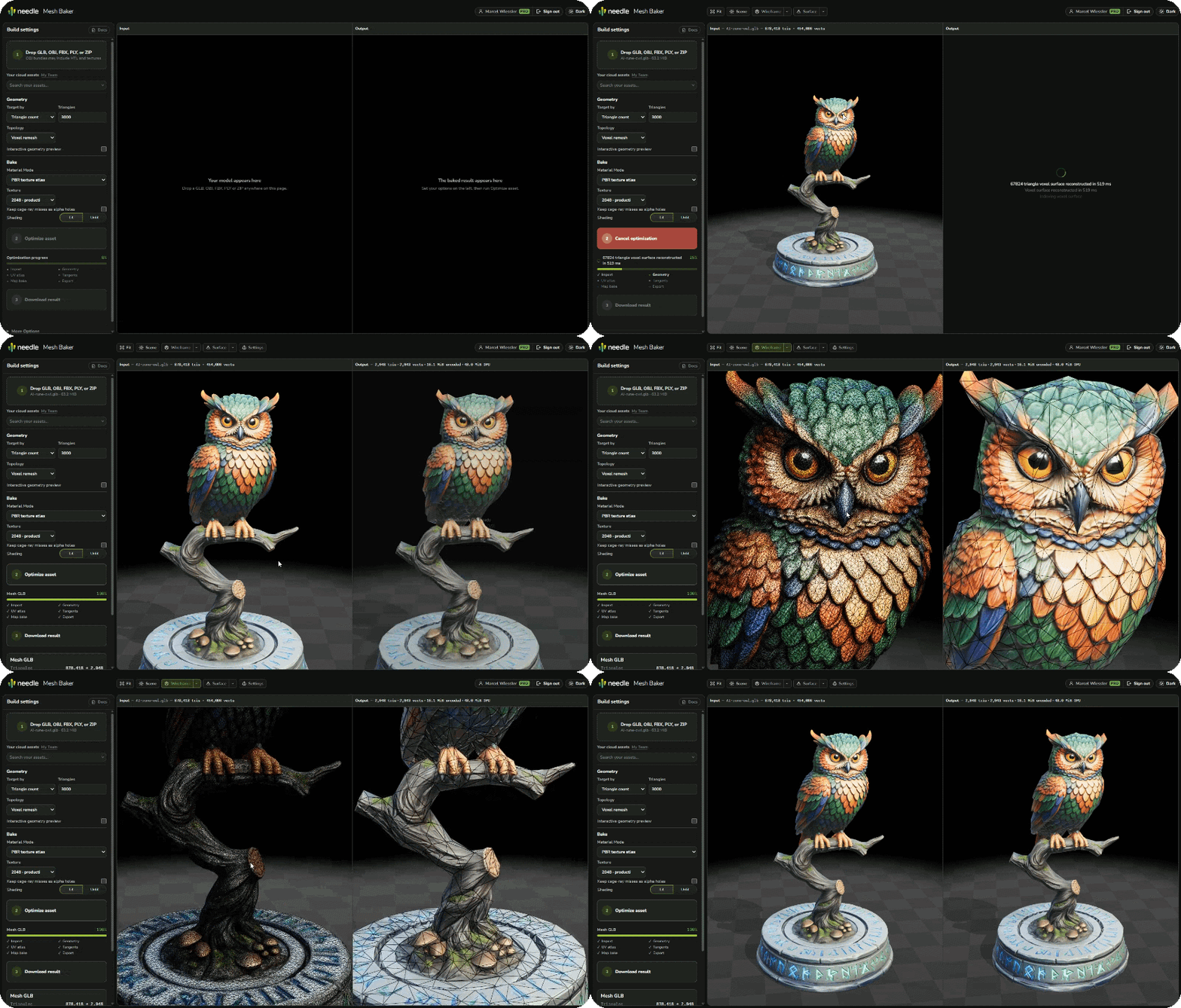
Load a model, press Optimize. The demo model goes from 800,000 triangles to 6,000.
Quick Start
- Open mesh-baker.needle.tools in your browser
- Drop a
.glb,.gltf,.obj,.fbx,.plyor.ziponto the page, or load a model from your Needle Cloud library - Set your triangle budget under Geometry, or switch to targeting a maximum surface error
- Press Optimize, then compare the result against the source
- Download the result as a
.glb
Processing happens on your machine, 100% local
Importing local files, baking, previewing and comparing all happen on your machine. Even image-to-3D generation runs right in your browser. These processing steps do not need a server. Ask AI chat and optional Needle Cloud features do need a connection. The more powerful your machine is, the faster Mesh Baker will be.
Overview
A dense model can store small details in its geometry. Examples include scratches, feathers, seams, and bolts. Geometry reduction removes some of this detail, and texture baking transfers the details to texture maps on the reduced mesh.
Mesh Baker creates the reduced mesh, UVs, and tangents. It then projects the source appearance onto the result. A normal map preserves small surface details in shading, the mesh controls large shapes and the silhouette.
You can also keep the source geometry and bake new materials only, reducing draw calls. Use this when material count and draw calls are the main problem, for example, when you have a model made out of many low-poly parts that share the same material.
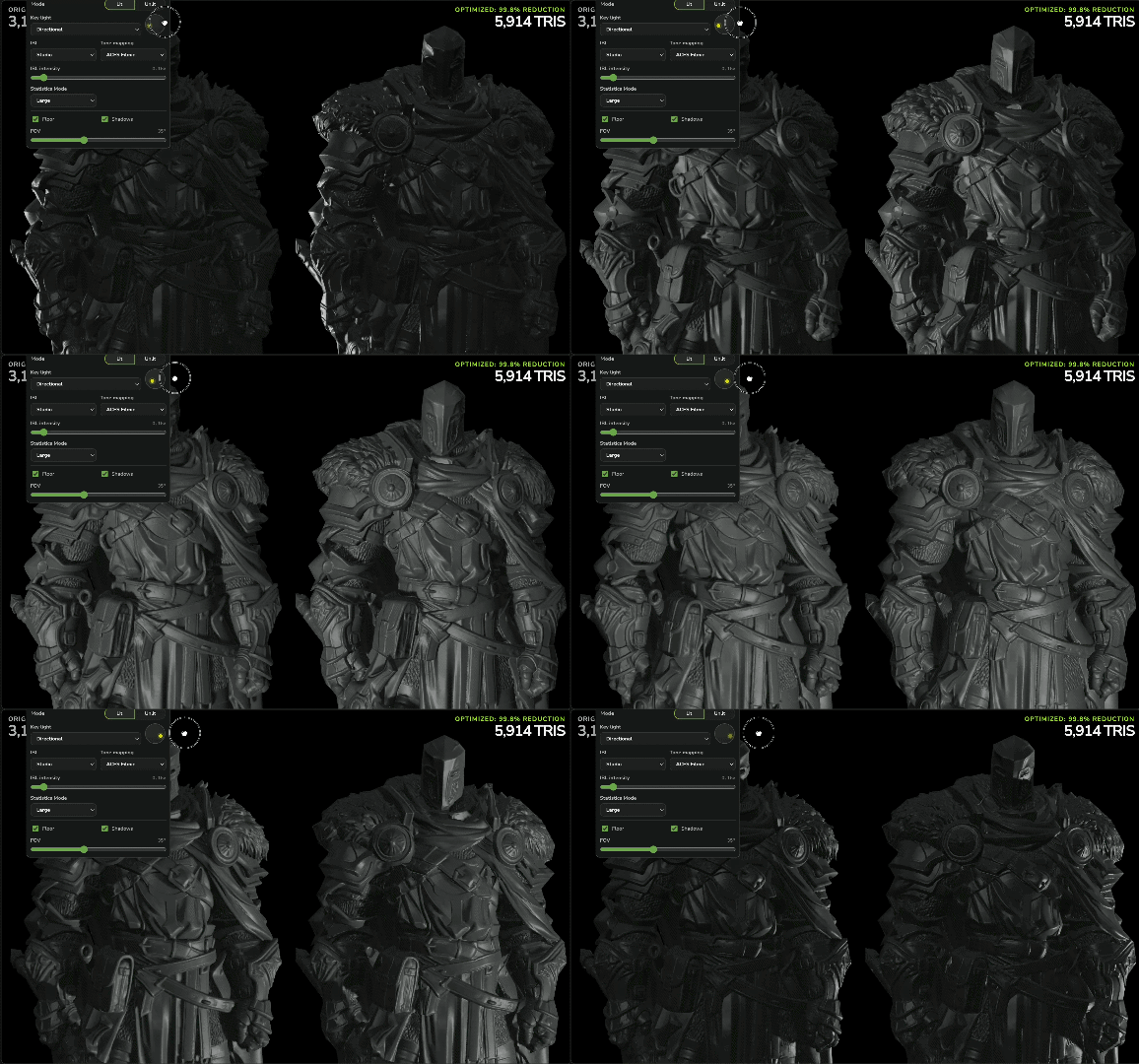
Normal maps preserve surface detail under changing lighting conditions, even for low-poly models.
Input formats
Mesh Baker can load these formats:
| Input Format | Notes |
|---|---|
.glb / .gltf | Supports animations |
.fbx | Supports animations |
.obj + .mtl + textures | Select all files together |
.ply | Triangle mesh, or a Gaussian splat cloud |
.zip | An archive of any of the above, relative paths kept |
| Needle Cloud | Pick a model from your own Needle Cloud asset library |
Output formats
Mesh Baker exports a .glb file. The result depends on the selected geometry and material settings. It can contain:
- a reduced triangle mesh
- a quad-remeshed surface, triangulated for glTF export
- a voxel-remeshed surface
- a watertight outer wrap
- the source geometry with newly baked materials
- a skinned mesh with its rig and animation clips
- a pixel or voxel representation
- an octahedral impostor representation
Use these outputs for LODs, animated characters, background objects, scans, generated models, and CAD imports.
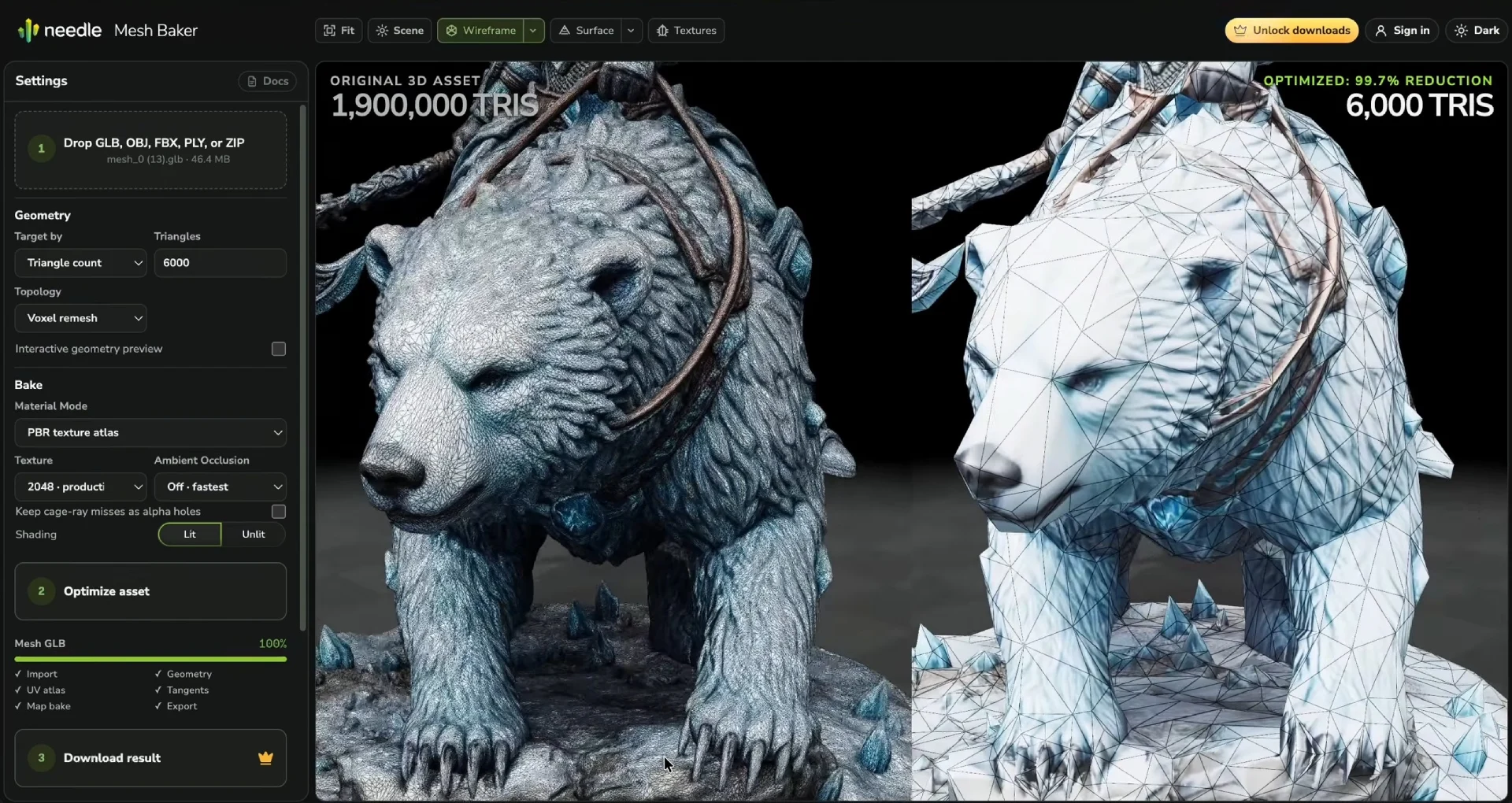

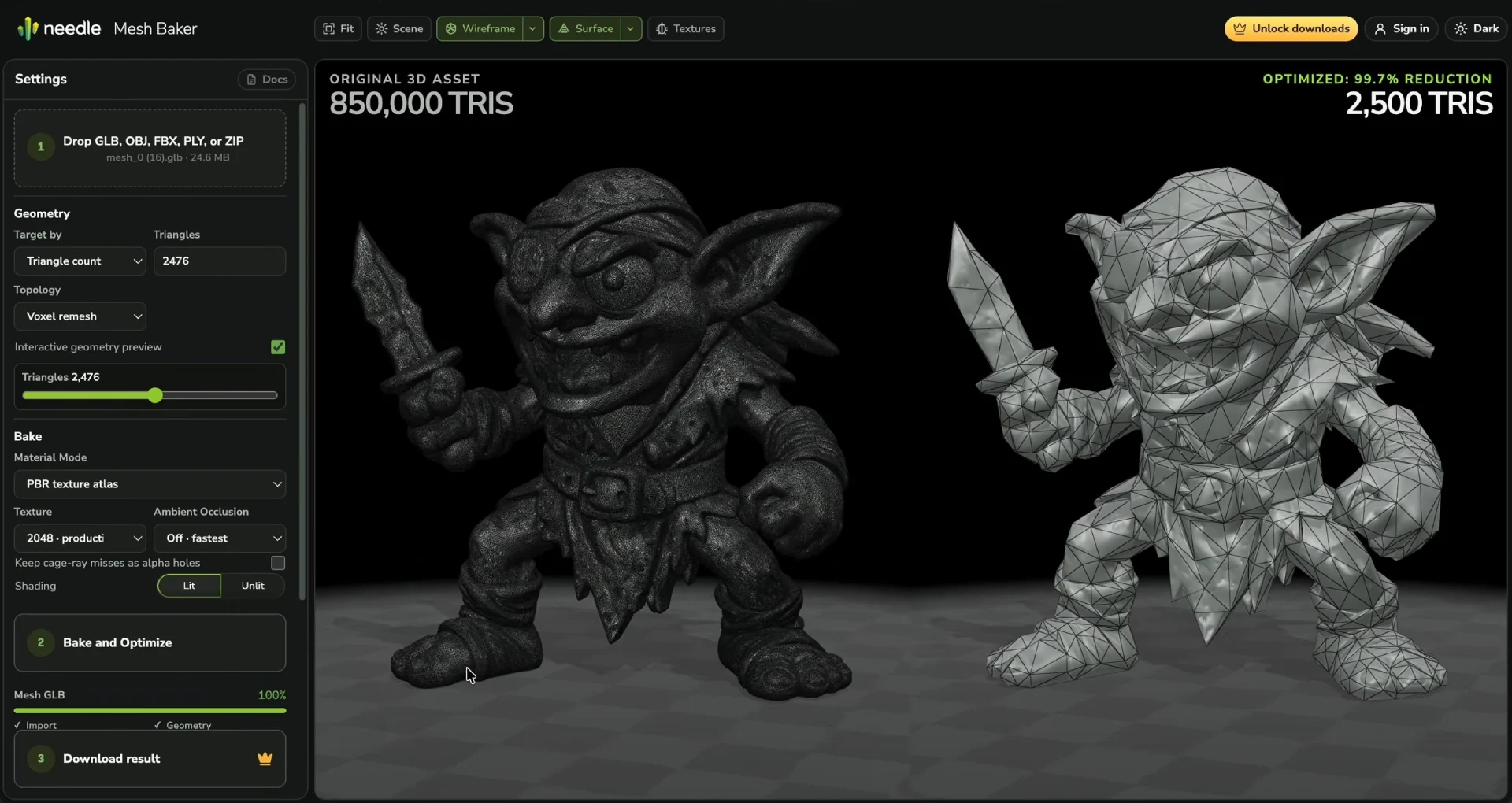
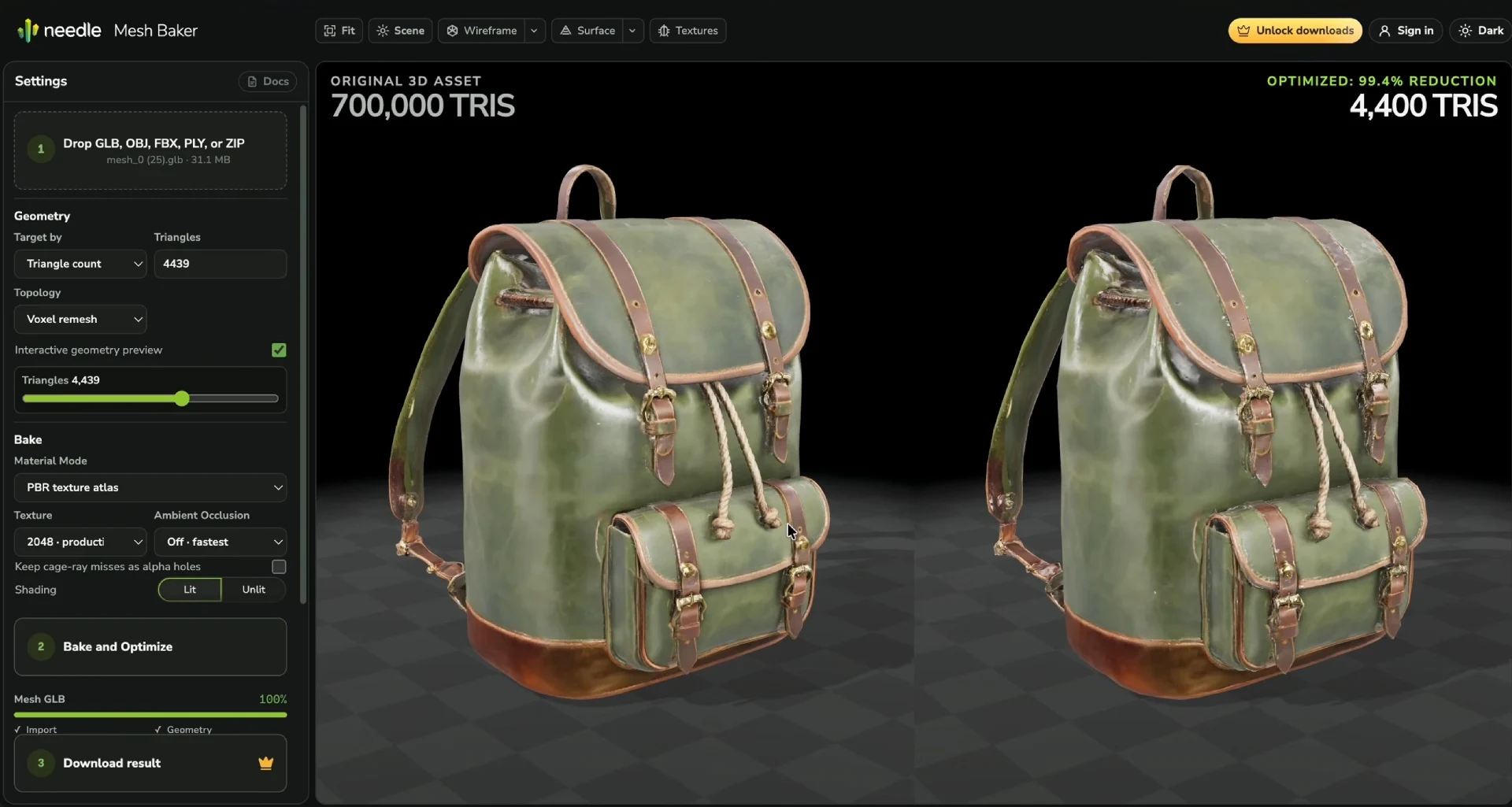
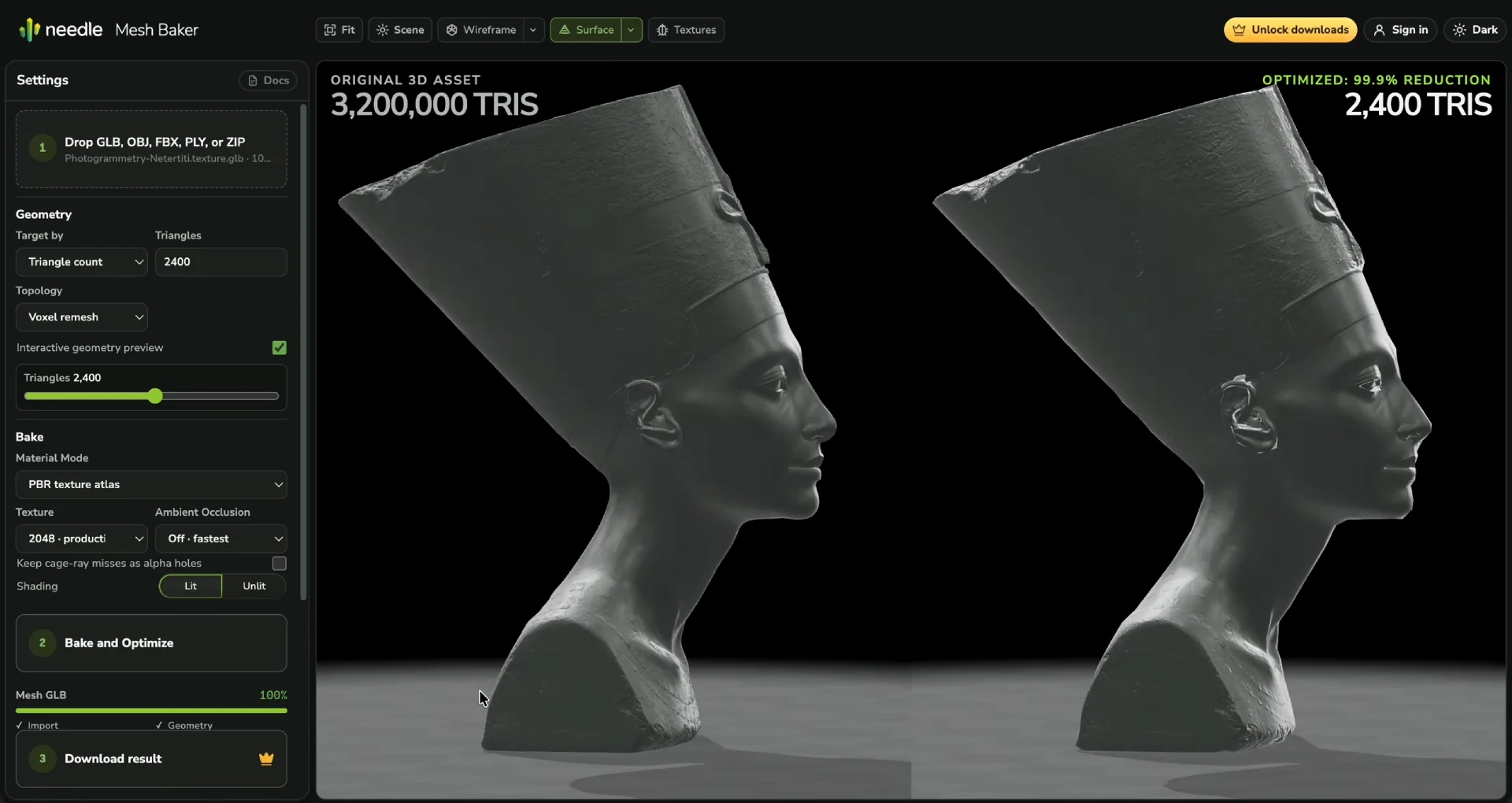
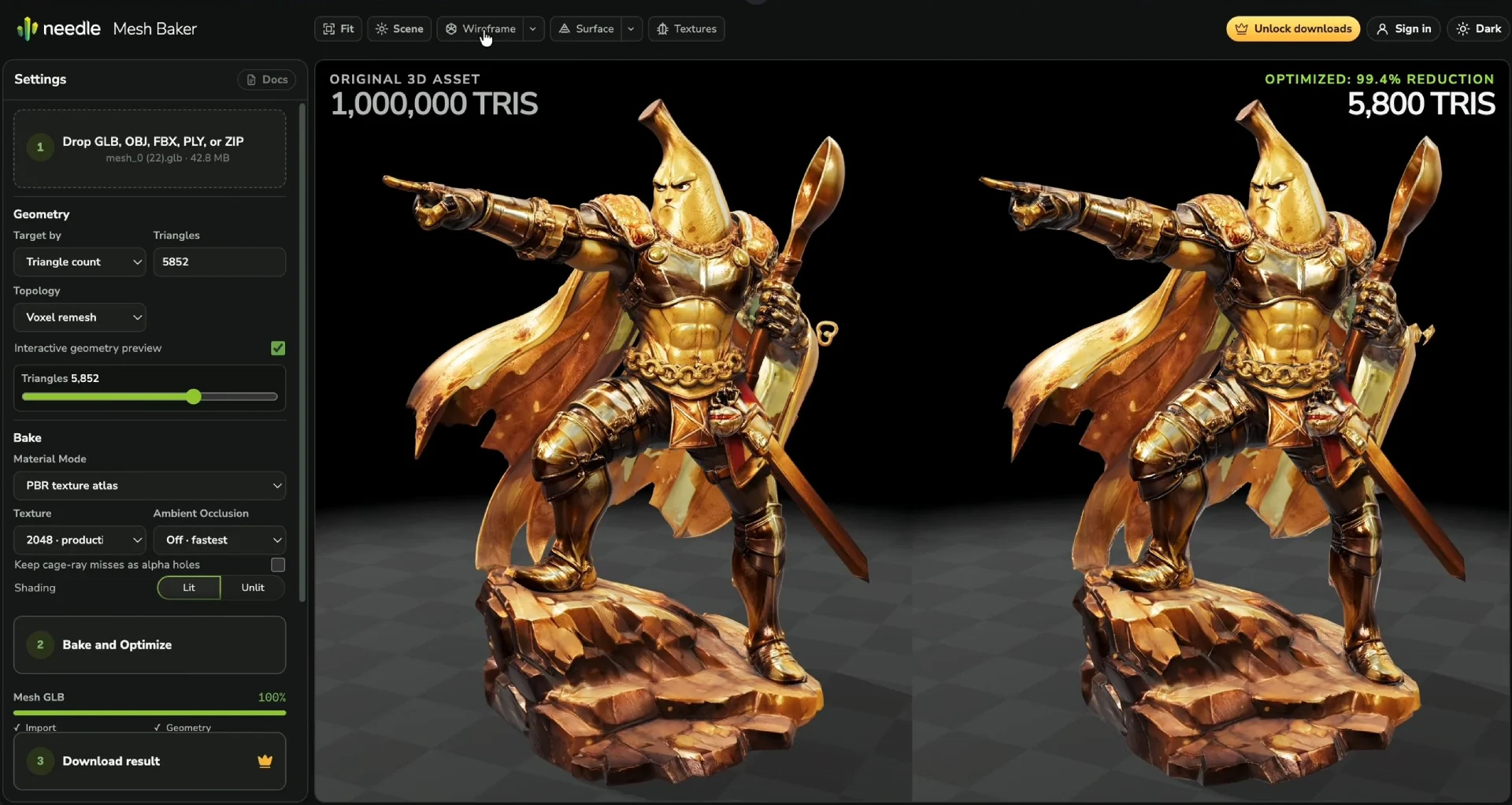
- Set a triangle or quad count, or set a maximum surface error.
- Merge compatible materials into one atlas to reduce draw calls.
- Keep transparent surfaces separate when they require separate rendering.
- Bake base color, normal, roughness, metallic, emissive, opacity, and ambient occlusion maps at resolutions up to 4096 px.
- Preserve a rig and animation clips when you optimize a skinned mesh.
- Preview geometry changes before you run the texture bake.
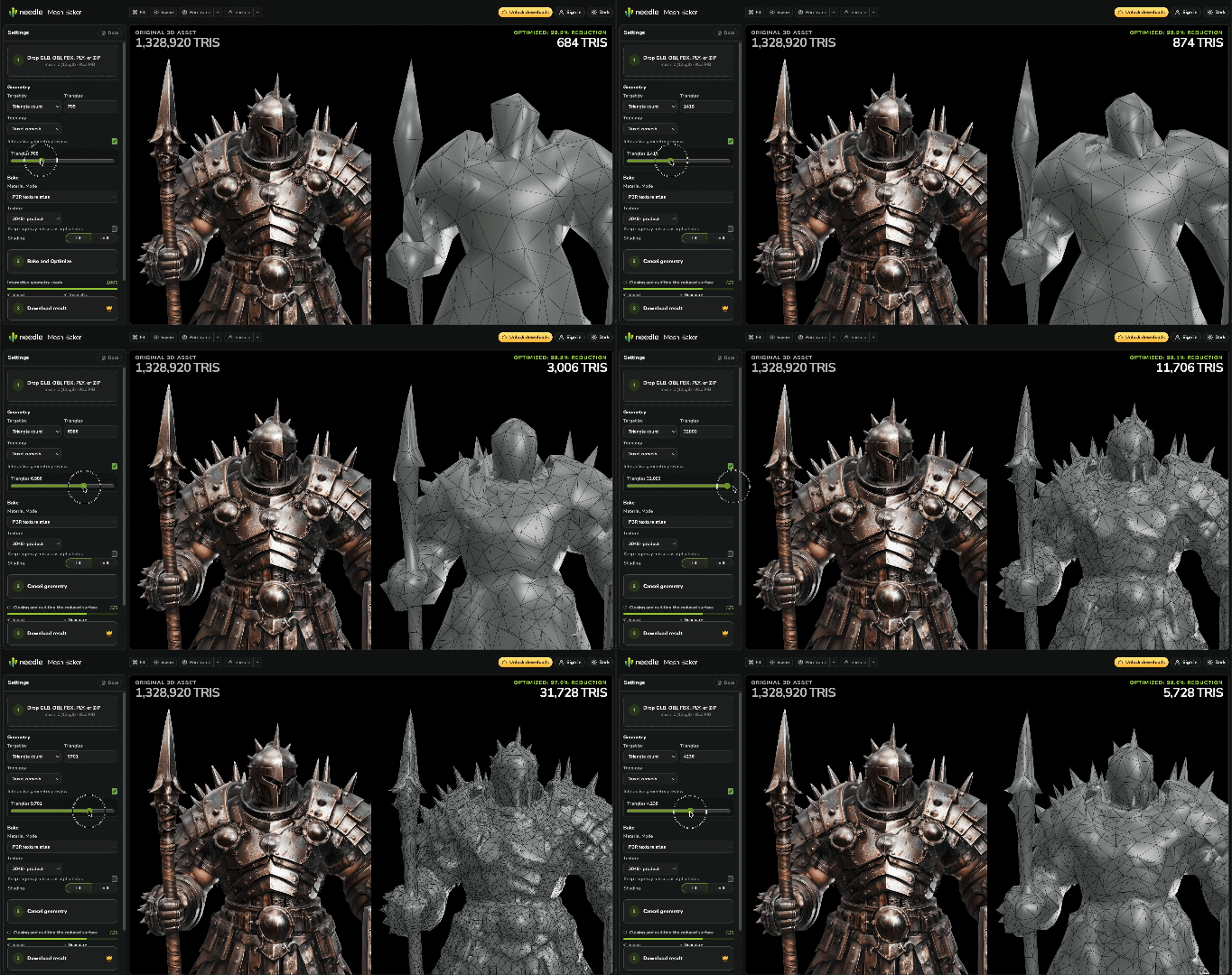
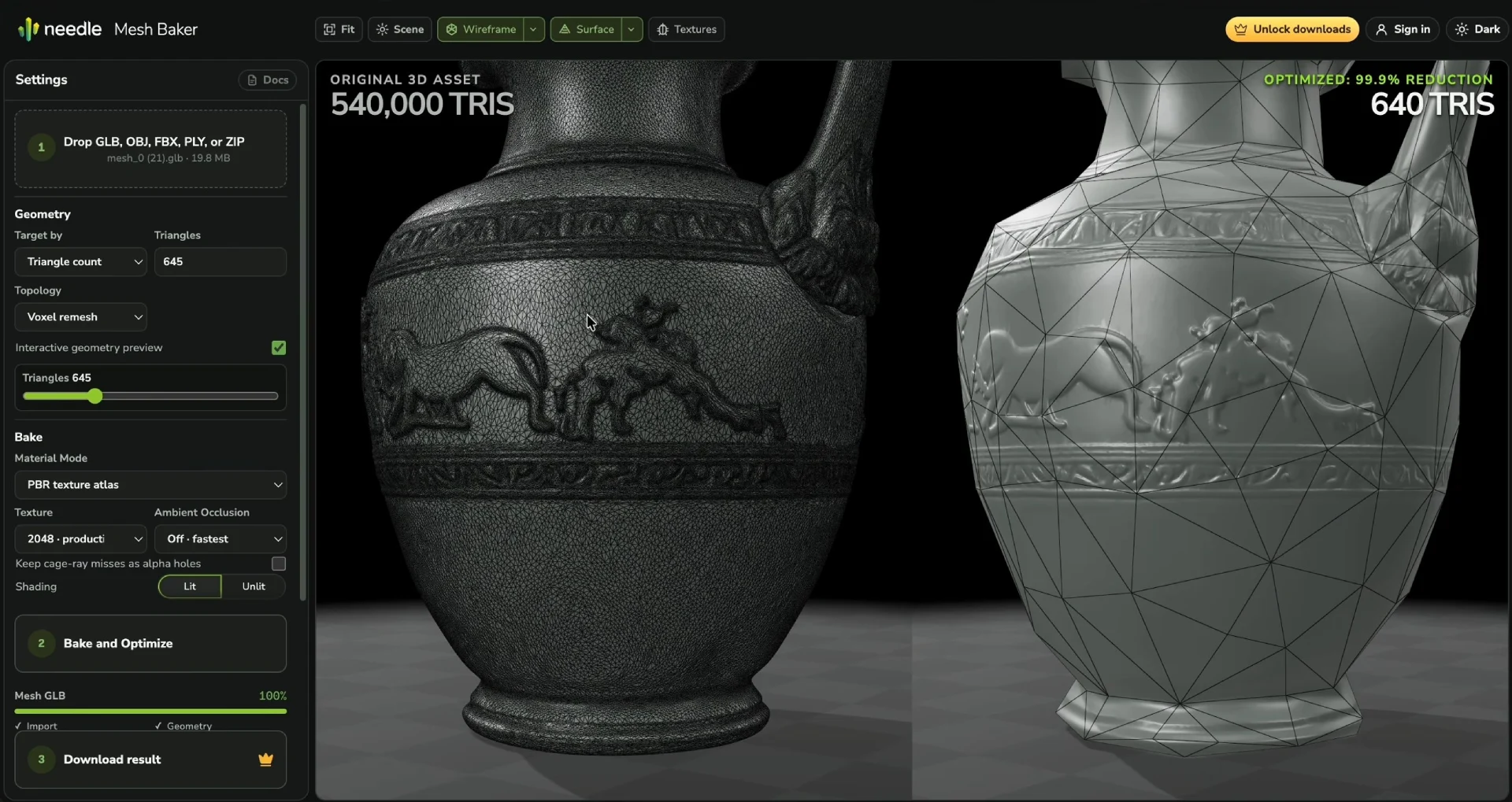
The geometry preview updates live when you adjust the triangle target count. You can use this to adjust the silhouette until you like it, then bake textures.
The workbench shows the source on the left and the result on the right. The cameras are synchronized, so you can rotate, pan, and zoom both views together. Use the following controls:
- Show the final material, the mesh, or one baked map.
- Enable the wireframe to inspect the topology.
- Change the light, environment, tone mapping, floor, and shadows for both views.
- Review the measured quality score, and the input and output draw call counts.
- Inspect and download each baked texture.
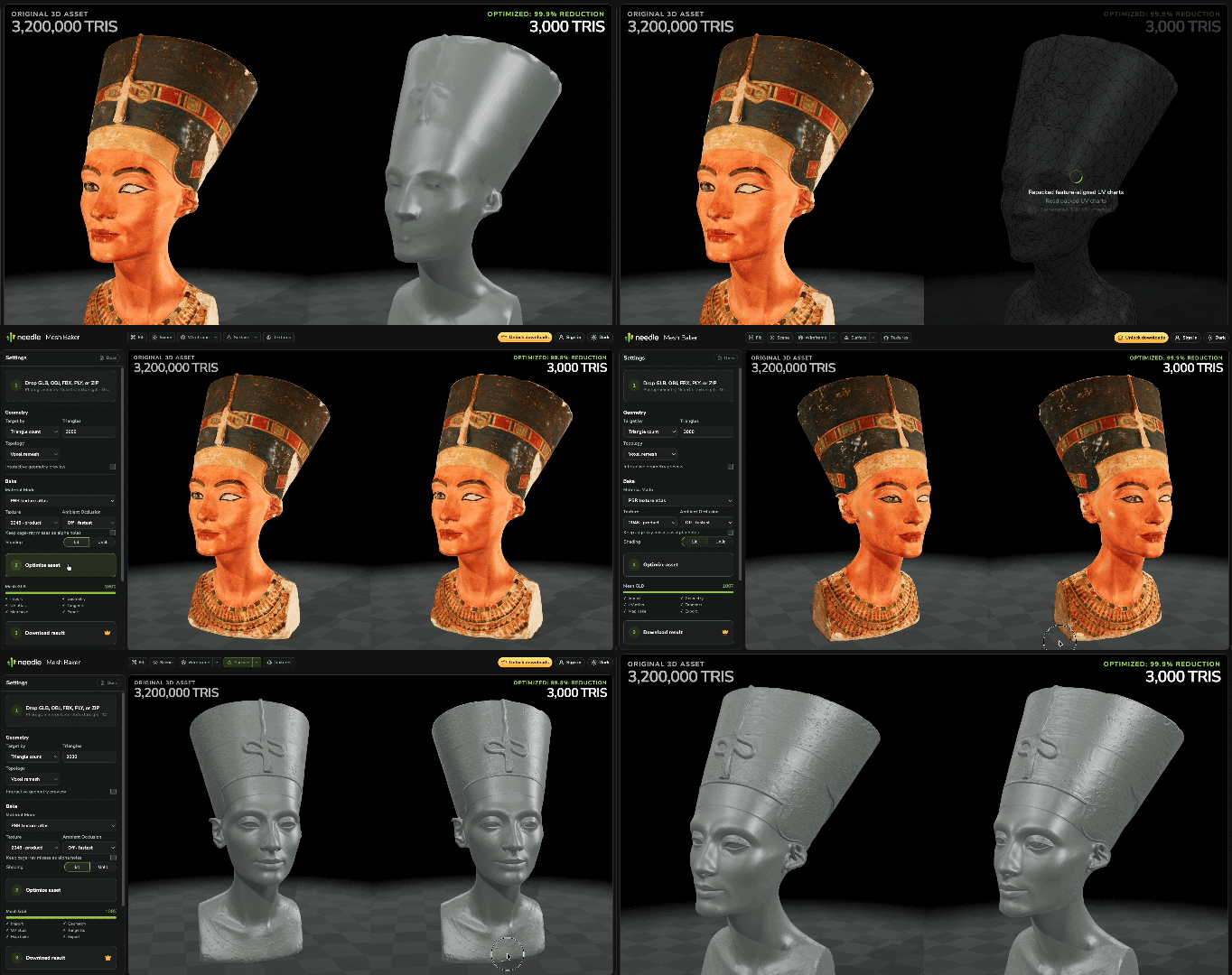
Looking at the "surface" (normals + lighting) and the "wireframe" (outlines of individual triangles).
Output Modes
Mesh Baker serves a variety of common 3D asset workflows for realtime apps, games, VFX and more. There are several different output modes to choose from:
| Mode | Use it when | Runtime |
|---|---|---|
| Mesh with PBR atlas | General-purpose replacement for the source | glTF with baked PBR textures |
| Mesh with gradient trims | A tiny LOD matters more than fine surface detail | glTF with tiny textures |
| Mesh with vertex colors | Texture payload dominates a small asset | glTF with vertex colors |
| Octahedral impostor | Distant or repeated objects, last LOD level | Use the Needle impostor loader |
| Pixel impostor | Pixel games with many assets | Use the Needle pixel-impostor loader |
Unlimited Image-to-3D
The Generate panel builds a model from a text prompt or from a single image, on the GPU in your browser. Use an image when you have a clean picture of one object, and text for drafts or when there is no reference. The first run downloads the model weights and takes considerably longer than later runs; the panel shows the download size and whether your device is capable before you start.
For image generation, cut the background out so the object is actually transparent. A photographed backdrop becomes part of the reconstructed shape, and a painted checkerboard is not transparency. The workbench can cut out an image for you, and an experimental phone-camera flow sends a photo to the desktop for cutout and review. Up to three extra views of the same object can guide generation; separate AI renderings of a similar object are not usable as extra views.
Generated models use the same remeshing and baking controls as imported ones.
Geometry Optimization
Voxel Remeshing is a good place to start.
If in doubt, use Voxel remeshing. It works well for most 3D assets. Mesh Baker is smart enough to retain animation and rigging, and it can handle disconnected or damaged source geometry.
Voxel remeshing
Voxel remeshing is a very powerful and robust method for rebuilding geometry. It is the default method used in Mesh Baker, because it works well for general 3D assets, no matter how disconnected or damaged the source geometry is. It rebuilds the model on a high-resolution voxel grid and then reduces the new surface to the target count.
Voxel remeshing merges disconnected source parts into one surface. If you have thin sheets, interior walls, or open surfaces, you can thicken them or create a watertight outer wrap, with the following options:
- Voxel resolution sets the number of cells along the longest model axis. A higher value preserves smaller features.
- Thicken thin sheets helps close thin, opaque surfaces into solids.
- Keep surface as a shell follows the source surfaces instead of filling the interior.
Simplify a triangle mesh
Use Simplify for source meshes that are already split up into meshes in the way you expect, for example, clean separate parts. Set a triangle count or a maximum surface error. Mesh Baker then reduces the vertex count without remeshing the surface.
Reduce a mesh but keep its textures
To cut triangles without building a new atlas, set Representation → Mesh, Geometry → Method → Simplify, Mesh Type → Triangles and Bake → Materials → Keep source materials, then set a triangle or surface-error target and run Optimize. The result keeps the source materials, textures and UV layout.
Quad remeshing
Select Quads under Mesh Type to quadify the selected source topology with AutoRemesher.
Use quad remeshing when you need a more regular surface, and want to continue working with quads in a 3D tool, for example for sculpting, subdivision, retopology, or manual rigging workflows. For realtime assets, Triangle mode usually produces smaller file size, and has more surface simplification potential.
Restoring Quads in Blender or other softwares
The glTF format stores triangles, so Mesh Baker turns each quad into two triangles during export. You can restore the quads in Blender or another 3D tool; in Blender, select the mesh and run Mesh → Faces → Tris to Quads.
Create a hull mesh for VFX uses
Use Hull Mesh (VFX) to create a mesh that wraps the source and acts as "hull" around it. The hull mesh will attempt to fully contain the source mesh, so no parts of the source peek outside of the hull. The most important parameter is the expected surface offset, usually 1-5%, which defines how tightly the hull wraps around the mesh. A minimum hole size setting controls which openings get closed. This method is suitable for visual effects, collision meshes and physics proxies.
Mesh Baker includes various preset visual effects based on wrap meshes, such as ice, snow, vines, aura, and energy shields. Each of them provides several settings to tune the effect, and hull meshes are of course also usable with your own effects and shaders.

To restore exported effects in Three.js, use the runtime package integration.
Keep the source geometry
Use Bake textures only, keep geometry to retain the source mesh and bake new materials. Use this mode to reduce material count or rebuild textures without changing the existing topology.
Interactive optimization
Mesh Baker allows you to see the result of geometry optimization live, so you can iteratively and in realtime adjust the silhouette, before doing the actual texture bake.
Enable Interactive geometry preview to test the optimized geometry before doing a texture bake, and drag on the slider to see the silhouette at the chosen triangle count or surface error. Compare the linked source and result views to check the silhouette, small parts and open borders. After you're happy with the silhouette and surface, click on Optimize to continue with the bake.
Material Optimization
PBR texture atlas
The PBR atlas can contain base color and alpha, normal, occlusion, roughness, metallic, and emissive data. The occlusion, roughness, and metallic values use the standard glTF ORM channel layout.
Compatible source materials can share one atlas and one output material. Transparent surfaces remain separate by default. You can place them in the main atlas when a single draw call is more important than separate blend rendering.
Choose a texture resolution from 256 to 4096 px. For a texture-only bake, you can generate new UVs or use valid, non-overlapping source UVs in the 0–1 range.
Vertex color baking
Select Vertex colors as the material mode to store color on the mesh instead of in a base-color texture. This can reduce file and GPU texture cost for small or stylized assets.
The color modes provide different trade-offs:
- Flat gives each triangle a constant color. This is great for stylized assets.
- Bake samples color at the existing vertices.
Modes other than Bake split triangle corners and can increase the vertex count. Ambient occlusion can be multiplied into the vertex RGB values.
Gradient Trim Sheet
Select Gradient trim sheet to optimize for a tiny texture. This mode is for stylized assets that use a single small texture to color a large surface. The result is a single material with extremely low texture cost (a few kilobytes).
Optionally, enable Pixelized sampling to create a small stylized texture with pixelated filtering. The optional gravity alignment rotates UV charts so they align better to the world up direction.
Great for stylized outputs
This mode is great for a gradient-texturing material style, and can be used with animated meshes as well. If you're looking for more pixelization options, check out "Voxelization and Pixelization" below.
Ambient occlusion map
Enable Ambient Occlusion in the advanced rendering settings to bake occlusion textures. Ambient occlusion captures lighting in fine creases and under overhangs, and improves the realism of models under realtime lighting dramatically.
Ambient occlusion is stored in the red channel of the ORM texture of the glTF PBR material model. If you want, you can instead have it multiplied it into the base color, or output into vertex colors, depending on your workflow and engine requirements.
Thickness, curvature, and height maps
Mesh Baker can also bake thickness, curvature, and height maps.
- Thickness estimates how much source material is behind each texel. Use it for subsurface-scattering or translucency shaders.
- Curvature stores signed surface curvature. Use it for edge wear, cavity masks, or highlight effects.
- Height stores the distance from the baked surface to the source along the surface normal. Use it for parallax or displacement mapping.
After a bake, you can inspect each map on the result and download it as a PNG to use in your own shaders.
Animation Optimization
Optimize animated and skinned meshes
Mesh Baker supports animated and skinned 3D assets, including glTF/GLB and FBX. It can also optimize many-part meshes to produce a single skinned mesh with the expected surface appearance, greatly improving runtime performance.
You can preview clips and poses before baking, then choose how motion affects the result:
- Optimize for clips results in a mesh that has more triangles in areas that deform during animation. It samples the animations, keeps the rig and clips, and keeps more geometry in areas that deform more. This is the best choice for skinned characters and animated objects.
- Ignore clips results in an optimized and rigged asset, but does not look at the animation clips (for example, if you don't have animation yet). This method guesses how various bones might move, and optimizes for that.
- Freeze pose converts the selected animation frame to a static asset and removes the animation and bones.
Use Triangle mode for animated assets
Quad remeshing does currently not support animation-aware optimization. Use triangles for skinned meshes.
Smart Segmentation
Smart mesh segmentation proposes parts from the model's shape and appearance. Use Parts → Auto, or ask for a part count, then review the coloured regions and merge parts where needed.
Posing and rigging
Under Experiments → Show Deformation settings you can place pins, adjust a rig with IK handles, mirror edits and author pose slots. Wiggle previews secondary motion. Download writes a skinned .glb with standard joints, weights and pose clips, which any glTF reader can play; live IK and secondary motion need Needle's rig runtime.
Voxelization and pixelization
Select the pixel-impostor output to convert the model to a solid voxel volume. This output is intended for small objects with a deliberate pixel or voxel appearance.
The preview provides four display modes:
- Voxel geometry displays the portable glTF fallback.
- Screen-aligned voxel splats render the voxel cells in one draw call.
- Volume raycast renders a bounding box and traces the voxel volume in the shader.
- Stable screen pixels uses the volume raycast and aligns the result to a fixed screen-pixel grid.
The output stores base color, normals, and material data for its surface voxels. The downloaded glTF contains a geometry fallback and a versioned Needle extension for the specialized runtime modes. See runtime integration for Three.js to load the extension and set up its display modes.
Use a regular optimized mesh or an octahedral impostor when you need a smooth silhouette.
Octahedral Impostors
Octahedral impostors replace a model with view-dependent baked images. Use them for distant or repeated objects, where the object covers a small part of the screen.
More captured views make the transitions between angles smoother and cost more texture space. The exported .glb carries fallback geometry that any glTF viewer shows; the camera-dependent effect needs the Needle runtime loader.

Gaussian Splat to Mesh
Gaussian splat to mesh converts a .ply splat capture into a textured glTF mesh, so the result does not need a splat renderer in the target app. The capture is reconstructed into a mesh and can then be remeshed and baked like any other source. This works for opaque captures; translucent Gaussian volumes are not supported yet.
Ecosystem Integration
Load runtime effects in Three.js
Install @needle-tools/three-mesh-effects and wrap your GLTFLoader with useLoader once to load exported hull effects, impostors, and deformation rigs automatically:
import { useLoader } from '@needle-tools/three-mesh-effects';
import { GLTFLoader } from 'three/addons/loaders/GLTFLoader.js';

const loader = useLoader(new GLTFLoader(), renderer);
const { scene: model } = await loader.loadAsync('/model.glb');
scene.add(model);
Use your existing Three.js renderer and scene. Each runtime handler loads only when the asset declares its extension. Configure compression decoders on the GLTFLoader as usual; deformation rigs still need a per-frame update.
See the npm package README for installation, renderer requirements, and the effect-specific setup.
Optimize objects from Needle Inspector
With Needle Inspector 2.5 or newer, you can directly send scene objects to Mesh Baker for optimization, and integrate the optimized result back into your scene.
In Needle Inspector, open the Mesh Baker panel. Select one or more objects in the scene, then click Send to Mesh Baker. The workbench opens in a new browser tab with the selected objects. You can also create bake groups in the Inspector and add one or more objects. Mesh Baker then processes each group as one unit. It combines compatible materials into one atlas.
The result is automatically integrated into your current scene. Use the Inspector toggle to compare the original and optimized versions. Change the settings and bake again when needed.
Still 100% local processing!
Inspector and Mesh Baker communicate directly between the two browser windows. This process does not upload the model to a server.
MCP Integration for AI
Mesh Baker also has a built-in Ask AI chat in the workbench. It works inside the page; WebMCP lets a separate compatible browser agent control the workbench.
Mesh Baker provides WebMCP tools. A compatible browser agent can load a model, change settings, start a bake, inspect the result, and download or upload the result.
An agent can load from a URL, from a file in the conversation, or from your Needle Cloud library. Downloads and uploads follow the same account and license rules as the controls in the workbench. On a browser without WebMCP nothing is registered and nothing is downloaded.
"Load this model, get it under 10k triangles, show me the wireframe, and download it when it looks right."
ChatGPT loads a model, sets the triangle budget, starts the bake, and checks the result through WebMCP.
An agent can use screenshots of the two previews to check the visual result. A triangle count alone does not show missing parts, changed silhouettes, or texture errors.
The agent can also generate a model from text or an image, then optimize the generated result.
Browser support
| Browser | Status |
|---|---|
| ChatGPT App | ✅ |
| Microsoft Edge 147+ | ✅ |
| Chrome 149+ | ✅ |
| Firefox, Safari | No WebMCP support yet |
WebMCP is still being standardised. Chrome exposes it only to sites carrying an origin-trial token; Mesh Baker ships one, so it works there without enabling a flag.
The  ChatGPT app can use all Mesh Baker tools without a separate MCP server, directly from opening the web app in the ChatGPT app.
Access and license
You can load models, change settings, bake, and compare results without a purchase.
A one-time purchase enables local downloads (and also Needle Cloud uploads). To purchase a license, log in with your Needle account. There is no usage limit and future features are included as well.
| Free evaluation | With a license | |
|---|---|---|
| Load models, bake, preview, compare | ✅ | ✅ |
| Quality metrics and channel inspection | ✅ | ✅ |
| Drive it with an AI agent | ✅ | ✅ |
Download the baked .glb | — | ✅ |
| Upload results to Needle Cloud | — | ✅ |
| Needle account required | — | free account |
Included with Needle Engine PRO
Mesh Baker is included with a Needle Engine Pro license. Sign in with your Needle account and you automatically have access.
Command-line license
A separately licensed command-line version runs mesh bakes, parts-to-skin conversion, impostor bakes and impostor texture compression over whole folders, as a build step or in CI. Contact hi@needle.tools for access.
FAQ
System requirements
- Use Chrome, Edge, or another Chromium-based desktop browser for best results. You need a browser with WebGPU support.
- Baking uses the GPU. Bake time and maximum model size depend on the GPU and available memory.
- A desktop GPU is recommended. You can use most functionality on phones, but the UI and workflow aren't optimized for it.
- Image-to-3D and text-to-3D need ~2GB of cache space (one-time download) and a strong enough GPU (6+ GB VRAM)
Do I need an account to try it?
No. You can load local files, bake, and compare results while signed out. You need an account to download a result or use Needle Cloud.
What can the built-in Ask AI chat do?
Click Ask AI beside Docs and sign in. You can ask about a setting or the loaded model, ask for a triangle target, or have the assistant change settings and start a bake. It reads the current workbench state and can inspect the bake result when it finishes. If the workbench is empty, it can load the public demo owl without uploading your own model.
The chat uses your selected Needle Cloud team. Choose the team from the name at the top of the chat. Ask AI can search that team's assets and load one into the workbench. Downloads and uploads still follow the workbench's license rules. To upload a finished bake, explicitly ask for a new asset or a new version of an existing team asset.
If team asset or upload actions are missing on a preview deployment, open Mesh Baker at mesh-baker.needle.tools or better-meshes.com. Those account actions are withheld on untrusted page origins.
Can Ask AI show me how to use a control?
Yes. Ask it to show you a workflow, or click Generate a visual tour in an empty chat. The assistant chooses the controls and writes a short explanation for each highlighted step. You can move through the tour with Next and Back. A step can wait until you load a model or finish a bake; if you have no model, the tour can offer a button to load the demo owl. The tour remains visible after a reload until you dismiss it.
Can I continue an Ask AI chat from Needle Cloud or another browser tab?
Yes. A Mesh Baker link with ?chat=<chat-id>&team=<team-id> opens that team conversation after you sign in to an account with access to the team. The chat also restores the previous conversation in the same browser session. Chat history is stored in Needle Cloud; a link does not transfer a model loaded in the workbench or local files attached on another device.
Does Ask AI send my model to Needle Cloud?
Chat messages and images attached to chat are sent to Needle Cloud. Models attached to chat and their baked results stay in this browser; the chat receives their names, local IDs, and summary information so it can operate on them. Loading a team asset downloads it to your browser. Uploading a finished model to your team is a separate action you must request and requires a Mesh Baker license.
Is it a subscription?
No. The browser license is a one-time purchase and includes updates. It is also included with Needle Engine Pro.
Is there a limit on how many models I can bake?
No. The browser version has no monthly or total model limit. Processing runs on your machine.
This license covers interactive browser use, including operation through an AI agent. Batch processing, CI, and services that process models for other users require the command-line license.
Is my model uploaded to Needle?
No. Local import, geometry processing, texture baking, and preview run in your browser.
Loading an asset from Needle Cloud downloads it to your browser. Choosing to upload a result sends the model and its file name to your Needle Cloud library. This is optional and is not required to bake or download locally.
Do you collect mesh names, material names or file names?
Usage events do not include object, mesh, material, texture or file names, or geometry and texture data. If you choose to upload a result to Needle Cloud, the upload includes the model and its file name.
Mesh Baker sends coarse usage statistics about model sizes, features, and settings. When you are signed in, these events are linked to your Needle account.
- Size, triangle, and vertex counts as ranges, such as 5–10 MB or 200k–1M. Exact values are not sent.
- Mesh and material counts as ranges.
- The presence of normals, UVs, vertex colors, or skinning.
- The file type and selected settings.
- Events such as model load, bake start, bake completion, and result download.
Failures include a shortened error message. A loader or browser can include a name or path in this message.
Does it work offline?
The page must load first. The baking pipeline then runs without a server connection. Loading a Needle Cloud asset, uploading a result, and the first download of the generation weights each need a connection.
Where can I use the results?
Use the .glb output in Needle Engine, three.js, React Three Fiber, Blender, Unity, or other software that supports glTF.
Octahedral and pixel impostors include fallback geometry that any viewer shows, but their full appearance needs the matching Needle loader. A rig exported from the experimental pose editor plays its clips anywhere; live IK and secondary motion need Needle's rig runtime. See Output Modes.
The exported textures are uncompressed. Compress them when you add the asset to a project. A Needle Engine production build converts them to GPU-compressed KTX2 automatically. Impostor textures have their own compression step. See Optimization & Compression.
Do I own the results? Can I use them commercially?
Yes. You keep the rights to your source model and result. Needle does not require royalties, revenue share, or attribution.
Baking does not change the license of the source. You must have the required rights to the source model, input image, prompt content, and result. See the EULA.
Can I bake animated or skinned characters?
Yes. For a skinned or animated glTF/GLB or FBX asset, choose Optimize for clips to retain the rig and animation clips while the baker samples motion during optimization. Choose Ignore clips to retain the animated document while optimizing its authored pose, or Freeze pose when you want a static result from one selected animation frame.
Can I reduce triangles without rebaking my textures?
Yes. Choose Simplify under Geometry and Keep source materials under Bake. The result reuses your textures and UV layout instead of building a new atlas. See Reduce a mesh but keep its textures.
My model looks wrong after baking. What should I change?
Check the geometry method first. Use voxel remeshing for scans, CAD, and damaged topology. Use simplification for clean authored meshes. If small parts disappear, enable their protection. If hard edges become soft, increase the surface-normal priority. Use the wireframe and map views to determine whether the error is in the geometry or a texture.
How does this relate to progressive loading?
Mesh Baker reduces the total geometry and material cost. Progressive loading controls when each level of detail is loaded. Optimize the source asset before you create its progressive levels.
Can I run it in my own pipeline or CI?
Yes. The command-line version can run as a build step or process a folder. It requires a separate license. Contact hi@needle.tools.
More Tools by Needle
See the Mesh Baker roadmap for feature status and planned work.
- Needle Inspector: inspect, debug, and edit three.js scenes in the browser.
- Optimization & Compression: configure texture compression, mesh compression, progressive loading, and LODs.
- Needle Engine + three.js: use Needle Engine in a three.js project.