---
title: iOS WebXR Support for Needle Engine
description: Needle Engine now supports native iOS WebXR on iPhone and iPad using ARKit-powered App Clips. Run WebXR AR experiences instantly without app installation on Safari iOS.
---
# iOS WebXR Support for Needle Engine
:::tip Now Available
iOS WebXR support is now available natively in **Needle Engine**.
:::
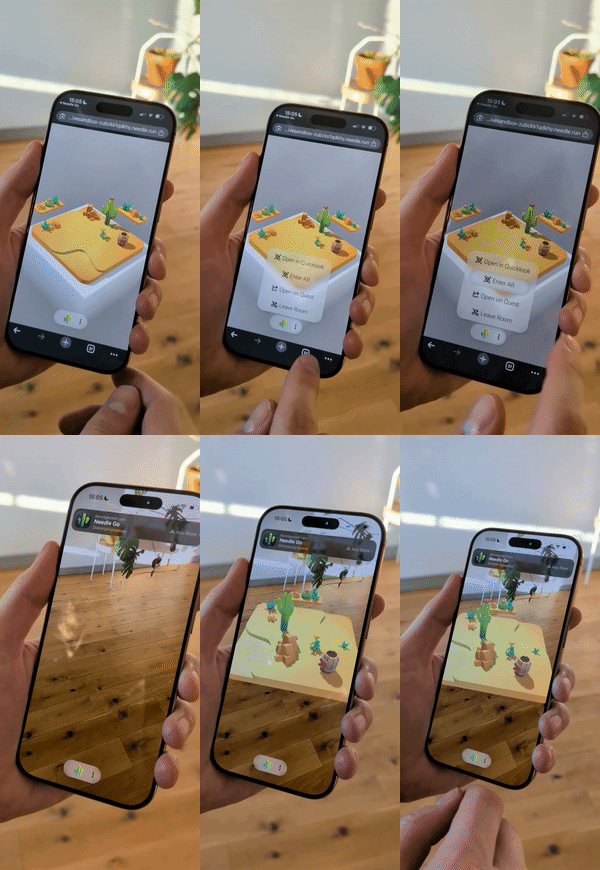
Needle Engine now includes native iOS WebXR support through Needle Go. While Safari on iOS doesn't support WebXR by default, Needle Engine automatically bridges this gap using native ARKit to provide full WebXR functionality in a lightweight, instant-launch format.
[](https://appclip.needle.tools)
Needle Engine has been the most flexible, easy to implement, and solid web AR implementation I've come across.
## How iOS WebXR Works in Needle Engine
Needle Engine automatically enables WebXR AR experiences on iPhone and iPad using App Clip technology, in the form of our Needle Go App Clip. App Clips launch instantly without requiring full app installation, making it perfect for sharing AR experiences via QR codes, links, or smart app banners.
The App Clip acts as a lightweight browser/runtime: Needle Engine adds the WebXR API on top of native ARKit, so the same WebXR scene that runs in Chrome on Android runs here too. There's no Apple Developer account or App Clip setup required — your scene runs inside Needle's shared **Needle Go** App Clip.
**Key Benefits:**
- **No Installation Required**: Users access AR experiences instantly without downloading an app
- **Native iOS WebXR**: Run WebXR scenes on iPhone and iPad with full ARKit integration
- **Easy Sharing**: Share AR experiences through QR codes, links, or website banners
- **Full AR Features**: Supports hit testing, anchors (wip), lighting estimation (wip), and more
- **Works with three.js**: Also compatible with any three.js-based web application via Needle Go
## Why Native iOS WebXR Support?
WebXR is not natively supported on Safari for iOS. Previously, the only option was Mozilla's WebXR Viewer app, which requires installation and hasn't been updated in years.
Needle Engine solves this by providing instant access to WebXR experiences through Apple's App Clip technology, automatically handling the integration for you.
## Getting Started
### Try it now
Visit [appclip.needle.tools](https://appclip.needle.tools) on your iPhone or iPad with Safari to experience iOS WebXR in action.
### How does iOS WebXR work in Needle Engine?
Needle Engine uses App Clips to instantly launch WebXR experiences in Augmented Reality without requiring app installation. The integration is automatic—your existing Needle Engine projects work on iOS without modifications.
### Which devices are supported?
iOS WebXR in Needle Engine works on iPhone and iPad devices running iOS 14 or later, from the Safari or Chrome browser.
## Experience WebXR AR on iOS
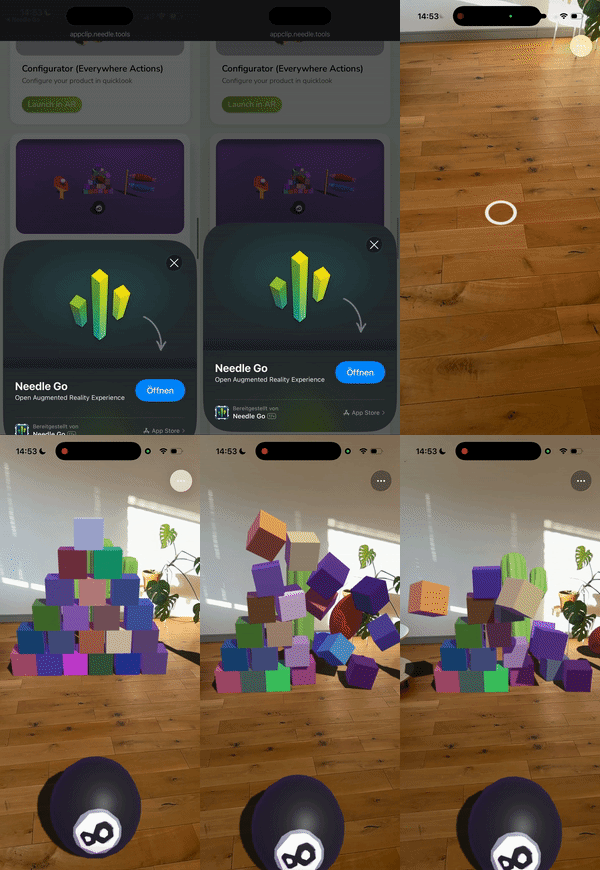
Users can experience your Needle Engine WebXR content through their iPhone or iPad screen, viewing and interacting with 3D content overlaid on the real world using native ARKit capabilities.
[](https://engine.needle.tools/samples/physics-playground) [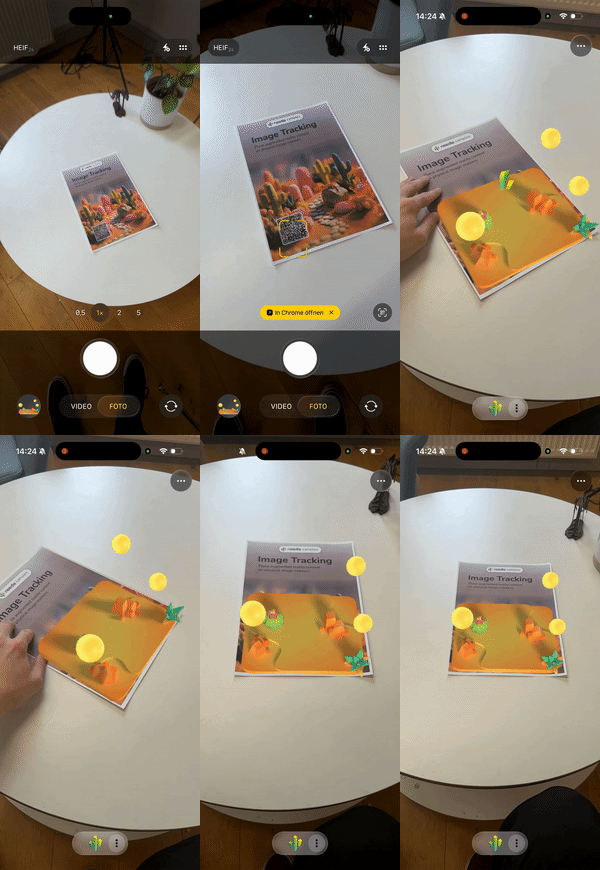](https://engine.needle.tools/samples/image-tracking) [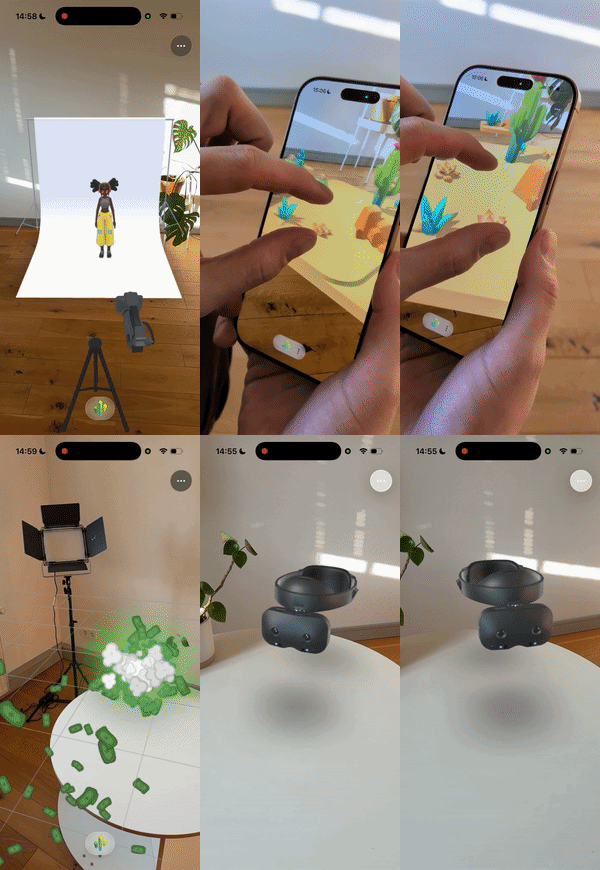](https://appclip.needle.tools)
Try out more iOS WebXR examples at [appclip.needle.tools](https://appclip.needle.tools).
## Using iOS WebXR with Needle Engine
Your existing Needle Engine WebXR scenes work automatically on iOS. Simply ensure your scene:
1. Has a `WebXR` component with the `createARButton` option enabled (see [WebXR documentation](/docs/how-to-guides/xr/))
2. Is deployed to a publicly accessible HTTPS URL
3. Is optimized for mobile devices
### Enabling iOS WebXR
There are two ways to enable iOS WebXR support in your Needle Engine project:
**Option 1: Enable AR Button (Recommended)**
Enable the `createARButton` option in your [WebXR component](http://engine.needle.tools/docs/api/WebXR). This automatically creates a button that users can tap to enter AR mode.
**Option 2: Start Programmatically**
Manually start an XR session in your code:
```typescript
NeedleXRSession.start("ar");
```
:::tip No Additional Changes Required
The WebXR-to-ARKit integration is handled automatically when users access your experience on iOS Safari and Chrome. On Android the standard WebXR API is used.
:::
### For Vanilla three.js Applications
Even if you're using vanilla three.js without Needle Engine, you can enable iOS WebXR support by linking to:
```
https://appclip.needle.tools/ar?url=
```
**Example:**
```
https://appclip.needle.tools/ar?url=https://example.com/my-ar-experience
```
Use this URL in QR codes, links, or share it directly. When opened on iPhone or iPad, it launches the Needle Go App Clip with your WebXR experience.
### QR Codes for Instant AR
When creating QR codes for your AR experience, you can link directly to the App Clip so that users on iOS are immediately presented with the App Clip card and can enter AR without navigating your website first.
To do this, encode the following URL in your QR code:
```
https://appclip.needle.tools/ar?url=
```
**Example:**
```
https://appclip.needle.tools/ar?url=https://example.com/my-ar-experience
```
When an iOS user scans this QR code, the App Clip card appears immediately, allowing them to jump straight into the AR experience with a single tap.
:::tip
This is the recommended approach for physical installations, exhibitions, product packaging, or any scenario where you want users to enter AR as quickly as possible.
:::
## Supported WebXR Features
Needle Engine's iOS WebXR support includes:
- WebXR session management
- Hit testing and plane detection
- DOM overlays for UI elements
- Image tracking
In progress: anchor creation and tracking, lighting estimation, and capturing the camera background in AR screenshots. [Let us know](mailto:hi@needle.tools) if your project needs one of these — it helps us prioritize.
## Custom Branding for iOS AR
By default the Needle Go App Clip card shows Needle branding. With a **PRO subscription** you can make it **yours** — your own header image, title, subtitle, and call-to-action — so users see your brand on the App Clip card before launching into AR.
[**Get PRO**](https://cloud.needle.tools/get-pro) – or email [hi@needle.tools](mailto:hi@needle.tools) and we'll set it up.
### How it works
We register a **dedicated branded link** for your experience:
```
https://appclip.needle.tools/x/
```
Opening it on iPhone or iPad (in **Safari**) shows **your** App Clip card before launching into AR — from a direct link or button tap, not only a QR code.
### What we need from you
To set up your branded experience, send us:
- The **public URL of your deployed experience** — the live page the branded card should open (e.g. `https://yourdomain.com/your-ar-experience`). This is your own hosted page, not an `appclip.needle.tools/x/…` link; we create that branded link for you.
- A **header image** — 1800 × 1200 px, PNG or JPG, no transparency, max 10 MB
- A **display title** (max. 30 chars) and **subtitle** (max. 56 chars)
- Optional translations for the title and subtitle
- The **call-to-action** label: "View", "Open", or "Play"
::: tip How long it takes
Once we have your assets, plan for about **1–2 business days** before your branded card is live. We register the link on our side quickly, but Apple then has to register and cache the App Clip card metadata on their servers — that Apple-side step is what takes most of the time, and it applies to both new links and updates to an existing one.
:::
Here's how a branded card looks — your image, title, and subtitle on the App Clip card:
::: tip Keep PRO active
Custom branding requires an active **PRO subscription** — if it lapses, the experience reverts to the default Needle branding. [Get PRO](https://cloud.needle.tools/get-pro)
:::
### Removing Needle Go branding entirely
PRO custom branding personalizes the App Clip **card** (header image, title, subtitle, call-to-action), but the experience still launches through our shared **Needle Go** App Clip, so the Needle Go identity remains part of the flow.
For a **fully white-label App Clip** — your own App Clip with no Needle Go branding — we offer a dedicated, custom setup on an **Enterprise** basis. The exact scope depends on your requirements and is arranged per contract. If that's what you need, get in touch at [hi@needle.tools](mailto:hi@needle.tools) and we'll walk you through the options.
### Connecting your branded experience to the *Enter AR* button
If you're building with Needle Engine, you can make the built-in *Enter AR* button (and any `NeedleXRSession.start("ar")` call) launch **your** branded App Clip experience instead of the default Needle card. Set `NeedleXRSession.appClipUrl` once, early in your app — for example at startup or in a component's `start()`:
```ts
import { NeedleXRSession } from "@needle-tools/engine";
// Use your branded experience id …
NeedleXRSession.appClipUrl = "your-experience";
// … or the full branded URL:
NeedleXRSession.appClipUrl = "https://appclip.needle.tools/x/your-experience";
```
From then on, when an iOS visitor taps *Enter AR*, Needle Engine opens your branded `/x/your-experience` link and iOS shows your custom App Clip card.
::: tip Use your registered link or a matching sub-path
The value must use the branded `/x/` link we set up for you, or a sub-path covered by that registered prefix. Query parameters on the branded link do not require another App Clip card registration. If `appClipUrl` includes query parameters, the engine keeps them. It does not automatically add query parameters from the current page. For example, `appClipUrl = "your-experience"` resolves to `https://appclip.needle.tools/x/your-experience`. Available in Needle Engine 5.1.0 and later.
:::
## Troubleshooting
### AR experiences aren't working
Ensure that camera permissions are granted. Check in your device settings if the App Clip has access to the camera.
### The App Clip opens, but my page or AR does not start
First identify where the launch stops:
1. **No App Clip card:** Open the link in Safari on iPhone or iPad. For custom branding, use the registered `/x/` link and check [I don't see my custom branding](#i-dont-see-my-custom-branding) below.
2. **The App Clip opens, but the page does not load:** Open the target page URL directly in Safari to check that it is reachable. If the page loads, add `?console` to the experience URL to show Needle Engine's on-screen JavaScript console. For a branded station link with a path, for example, use `https://appclip.needle.tools/x/my-project/station1/?console`. The console can only appear once the page has loaded enough to start Needle Engine.
3. **The page loads, but AR does not start automatically:** Try its *Enter AR* button. If manual entry works, note this in your report: it helps distinguish a missed App Clip start signal (`sessiongranted`) from an AR or page-loading failure. Needle Engine 5.1.14 includes a fix for late registration of this signal; update to it once published.
During local development, the Needle Vite plugin writes browser and server output to `node_modules/.needle/logs` on your computer. This does not provide logs for a deployed site; see [Debugging and log files](/docs/how-to-guides/debugging/#log-files).
:::tip Debug with an AI coding assistant
Copy the prompt in [Let AI read your logs](/docs/ai/#let-ai-read-your-logs). Add the App Clip launch link and tell the assistant which step above fails. Reproduce the problem while your local dev server runs; the assistant can then compare new log entries for page-load errors or App Clip handoff messages such as `sessiongranted`. A deployed site does not write these logs to your computer.
:::
If Needle Go's `…` menu is visible, choose **Send Feedback**. The draft email includes the current URL, app version, device and iOS information. Its attachment currently repeats device information; it does **not** contain captured JavaScript or native error logs. Add what you observed and when it happened. If the menu never appears, send the invocation URL, device and iOS version, approximate time, and the last visible screen to [support@needle.tools](mailto:support@needle.tools). For a reproducible project issue, create a report in Unity with **Needle Engine → Report a Bug → Create Bug Report (from current scene)** and include the same steps.
### Why is there a black background when I take a screenshot in AR mode on iOS? Only the 3D model is visible
This is expected: **capturing the camera feed in an AR screenshot is not yet supported** on iOS. On the iOS WebXR App Clip, a screenshot taken during an AR session contains only your 3D content over a black/transparent background — the real-world camera frames are not available to the screenshot, so you cannot composite them into the captured image today.
Note that requesting the `camera-access` feature (or adding a `WebARCameraBackground` component) does **not** fix this on iOS. That is the Android / standard-WebXR path for exposing camera frames; on the iOS App Clip the camera feed isn't accessible that way, and adding `WebARCameraBackground` can instead cause a black screen when entering AR. So there is currently no code workaround to include the live camera in an iOS AR screenshot.
We're actively working on AR camera capture for iOS. If this matters for your project, please let us know at [hi@needle.tools](mailto:hi@needle.tools) so we can gauge interest and prioritize it accordingly.
### My AR objects don't stay perfectly in place on iOS (anchors)
On iOS through the Needle Go App Clip, **AR anchors aren't available yet**, so placed content can drift slightly as the device refines its tracking — whereas QuickLook uses Apple's full native ARKit anchoring and stays rock-solid. Setting `useXRAnchor` has no effect on iOS today.
Good news: **anchor support is on its way to the App Clip / Needle Go.** The App Clip already runs on **native ARKit** (that's how hit testing and plane detection work today), so bringing anchors to iOS is on our roadmap — it's something we build into Needle Go, not a feature we're waiting on Apple to add to Safari/WebKit. It's in progress now.
In the meantime:
- **[Anchoring already works on Android](/docs/how-to-guides/xr/#anchoring-the-ar-scene)** via `useXRAnchor` — stability there is comparable to QuickLook.
- On iOS, place the scene as precisely as possible with the positioning reticle — the more accurate the initial placement, the less any drift stands out.
If anchoring on iOS matters for your project, please let us know at [hi@needle.tools](mailto:hi@needle.tools) — it helps us gauge interest and prioritize it.
### I don't see my custom branding
Custom branding is shown on your dedicated **branded link** (`https://appclip.needle.tools/x/`), opened in **Safari** on iOS — via either a direct tap or a QR code. If it doesn't appear, check:
- You're using your branded `/x/` link, **not** the generic `https://appclip.needle.tools/ar?url=…` link (the generic one always shows the default Needle card).
- If you launch AR from Needle Engine's *Enter AR* button, set `NeedleXRSession.appClipUrl` to your branded experience (see [Connecting your branded experience to the *Enter AR* button](#connecting-your-branded-experience-to-the-enter-ar-button)). Without it, the button opens the default Needle card.
- You opened it in **Safari**. App Clip cards don't appear in Chrome or Firefox on iOS — those browsers prompt you to open the page in Safari first.
- Your custom branding is active (PRO) and the experience has been approved on Apple's side. A newly set-up or updated branded link typically takes **1–2 business days** to go live, because Apple registers and caches the App Clip card metadata on their servers before it appears.
- The full Needle Go app isn't already installed on the device — if it is, iOS shows an "Open" banner instead of the App Clip card.
See [Custom Branding for iOS AR](#custom-branding-for-ios-ar) for details.
## Alternative: Everywhere Actions
Looking for a different iOS AR approach? Check out [Everywhere Actions](/docs/how-to-guides/everywhere-actions/), which enables interactive AR experiences on iOS using USDZ and QuickLook (Apple's native 3D format).
### Apple Vision Pro
The instant App Clip AR flow above is for iPhone and iPad. On Apple Vision Pro, Needle Engine falls back to QuickLook for AR — so for custom, interactive AR on visionOS, use [Everywhere Actions](/docs/how-to-guides/everywhere-actions/) (USDZ + QuickLook) rather than the WebXR App Clip.
## Related Documentation
- [WebXR Documentation](/docs/how-to-guides/xr/) - Setting up WebXR in Needle Engine
- [Image Tracking](/docs/how-to-guides/xr/image-tracking) - WebXR image tracking guide
- [Everywhere Actions](/docs/how-to-guides/everywhere-actions/) - iOS AR solution using USDZ
- [Deployment](/docs/how-to-guides/deployment/) - Publishing your Needle Engine projects
 ::: tip Keep PRO active
Custom branding requires an active **PRO subscription** — if it lapses, the experience reverts to the default Needle branding. [Get PRO](https://cloud.needle.tools/get-pro)
:::
### Removing Needle Go branding entirely
PRO custom branding personalizes the App Clip **card** (header image, title, subtitle, call-to-action), but the experience still launches through our shared **Needle Go** App Clip, so the Needle Go identity remains part of the flow.
For a **fully white-label App Clip** — your own App Clip with no Needle Go branding — we offer a dedicated, custom setup on an **Enterprise** basis. The exact scope depends on your requirements and is arranged per contract. If that's what you need, get in touch at [hi@needle.tools](mailto:hi@needle.tools) and we'll walk you through the options.
### Connecting your branded experience to the *Enter AR* button
If you're building with Needle Engine, you can make the built-in *Enter AR* button (and any `NeedleXRSession.start("ar")` call) launch **your** branded App Clip experience instead of the default Needle card. Set `NeedleXRSession.appClipUrl` once, early in your app — for example at startup or in a component's `start()`:
```ts
import { NeedleXRSession } from "@needle-tools/engine";
// Use your branded experience id …
NeedleXRSession.appClipUrl = "your-experience";
// … or the full branded URL:
NeedleXRSession.appClipUrl = "https://appclip.needle.tools/x/your-experience";
```
From then on, when an iOS visitor taps *Enter AR*, Needle Engine opens your branded `/x/your-experience` link and iOS shows your custom App Clip card.
::: tip Use your registered link or a matching sub-path
The value must use the branded `/x/