Host Your Own Networking Server
Deploy custom networking infrastructure for production and large-scale deployments.
By default, networked Needle scenes connect to cloud infrastructure managed by Needle. For production deployments, larger audiences, or custom requirements, you can host your own networking server.
Needle's Default Networking Server
Free Default Server - Sufficient for Most Projects
Needle provides a free, production-ready networking server that's suitable for most projects:
Server URL: https://networking-2.needle.toolsWebSocket Endpoint: wss://networking-2.needle.tools/socket
This default server:
- Works out of the box with no configuration needed
- Supports up to 15-20 concurrent users per room
- Handles state synchronization and persistence
- Has global availability and low latency
- Is free to use for all Needle Engine projects
You only need a custom server if:
- You need more than 15-20 concurrent users per room
- You require custom server-side logic or validation
- You need data sovereignty or on-premises hosting
- You want full control over infrastructure and costs
When to Use Custom Servers
Consider hosting your own networking server when you need:
- Scale - More than 15-20 concurrent users per room
- Control - Full control over infrastructure and implementation
- Custom Logic - Server-side validation, custom message handling
- Data Sovereignty - Keep data in specific regions or on-premises
- Cost Optimization - Predictable costs for high-traffic scenarios
Using Needle Networking Servers
Needle provides a ready-to-use networking server as an NPM package that you can deploy anywhere.
Self-Hosted Server Setup
Installation
The networking server is available as a Node.js package:
npm install @needle-tools/networkingIntegration
Choose your web framework:
import networking from "@needle-tools/networking";
networking.startServerFastify(fastifyApp, { endpoint: "/socket" });import networking from "@needle-tools/networking";
networking.startServerExpress(expressApp, { endpoint: "/socket" });import { init, onConnection } from "@needle-tools/networking";
// Add your framework-specific websocket implementation
class WebsocketConnector {
constructor(frameworkWebsocket) {
// Your implementation
}
on(event, callback) {
// Handle 'message' and 'close' events
// Call the callback when receiving messages
}
send(key, value) {
// Send messages to the websocket connection
}
}
const options = { endpoint: "/socket" };
init(options);
yourFramework.createWebsocketRoute(options.endpoint, frameworkWebsocket => {
onConnection(new WebsocketConnector(frameworkWebsocket));
});Configuration Options
The following options are available when starting the server:
| Option | Type | Description | Default |
|---|---|---|---|
options.endpoint | string | Relative server endpoint (e.g., /socket → yourserver/socket) | / |
options.maxUsers | number | Maximum concurrent users on the server | 50 |
options.defaultUserTimeout | number | Time in seconds before a user is considered disconnected | 30 |
Environment Variables
| Variable | Description | Default |
|---|---|---|
VIEW_ONLY_SALT | Salt for generating view-only room IDs from regular room IDs | Predefined value |
NEEDLE_NETWORKING_S3_* | S3 storage configuration (see below) | Not set (uses disk storage) |
State Storage
Default Storage (Disk)
By default, network state is stored as JSON files in the /.data directory:
- Each room has its own file
- State is sent to clients when they join a room
- Simple and works out of the box
- Suitable for development and small deployments
S3-Compatible Storage
For production deployments, you can use S3-compatible storage providers (AWS S3, MinIO, DigitalOcean Spaces, etc.):
NEEDLE_NETWORKING_S3_ENDPOINT=https://your-s3-endpoint.com
NEEDLE_NETWORKING_S3_REGION=us-east-1
NEEDLE_NETWORKING_S3_BUCKET=your-bucket-name
NEEDLE_NETWORKING_S3_ACCESS_KEY_ID=your-access-key
NEEDLE_NETWORKING_S3_ACCESS_KEY=your-secret-key
NEEDLE_NETWORKING_S3_PREFIX=my_state/ # Optional prefix for all state files
Local Development Server
For testing and development, run a local networking server:
Setup
- Download the local server from github.com/needle-tools/networking-local
- Follow the README instructions to set up the server
- The server will run on
wss://localhost:9001/socketby default
Configure Your Scene
- Add a
Networkingcomponent to your scene - Paste the local server address into the "Localhost" field:
wss://localhost:9001/socket
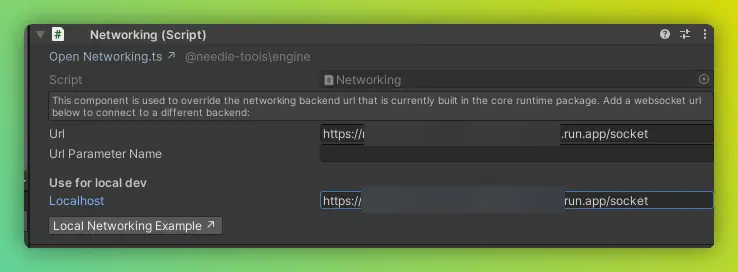
Different Servers for Development and Production
You can use different server URLs for local development and hosted deployment:
In the Networking component:
- Localhost - Used during local development
- Production - Used when your app is deployed
This allows you to:
- Test with a local server during development
- Automatically use production servers when deployed
- Avoid hardcoding server URLs
Deployment
The networking server can be deployed to any Node.js hosting provider:
Recommended Platforms
- Google Cloud Run - Serverless, auto-scaling
- AWS EC2 / ECS - Full control, scalable
- Azure App Service - Managed Node.js hosting
- DigitalOcean App Platform - Simple deployment
- Railway - Easy deployment with git integration
- Render - Modern deployment platform
Deployment Checklist
- [ ] Set appropriate
maxUserslimit - [ ] Configure S3 storage for persistence (recommended)
- [ ] Set up SSL/TLS certificates (wss:// required)
- [ ] Configure CORS if needed
- [ ] Set up monitoring and logging
- [ ] Test with expected user load
- [ ] Configure auto-scaling if supported
Advanced: WebRTC Customization
For voice chat (VoIP) and screen sharing (ScreenCapture), Needle Engine uses peer.js with WebRTC.
To use custom ICE/STUN/TURN servers:
import { setPeerOptions } from "@needle-tools/engine";

setPeerOptions({
    config: {
        iceServers: [
            { urls: 'stun:your-stun-server.com:19302' },
            {
                urls: 'turn:your-turn-server.com:3478',
                username: 'username',
                credential: 'password'
            }
        ]
    }
});
Troubleshooting
Connection Issues
Problem: Can't connect to custom server
Solutions:
- Verify server is running and accessible
- Check WebSocket endpoint URL (should start with
ws://orwss://) - Ensure CORS is configured if hosting on different domain
- Check firewall rules allow WebSocket connections
Performance Issues
Problem: Slow or laggy synchronization
Solutions:
- Increase server resources (CPU, memory)
- Use S3 storage instead of disk storage
- Deploy server closer to your users (CDN, edge functions)
- Consider using binary messages (Flatbuffers) for high-frequency updates
- Increase
maxUsersif hitting limits
Next Steps
Learn more:
- Understanding Networking - How the networking system works
- Manual Networking - Custom message handling
Reference:
- Networking Package Repository - Full server code
- Local Server Repository - Development server setup
- Networking Events API - Complete event reference