 Integrating with Webflow
You can add a Needle Engine scene (exported from Unity, Blender, or built with code) to any Webflow page, and let the page and the 3D scene talk to each other — for example, clicking a Webflow button to play an animation.
There are two ways to embed, depending on how tightly the page and the scene should interact:
- iframe — the simplest drop-in. The scene runs in its own isolated frame.
<needle-app>— embeds the scene inline in the page, so Webflow elements can drive it directly and scroll-driven "scrollytelling" works naturally.
Example project
A complete, working example — a button click that plays an animation, plus a scrollytelling page — is available here: github.com/needle-engine/webflow-demo · live demo
1. Embed as an iframe
The quickest option — it works on any Webflow plan and even renders in the Designer.
- Deploy your project (e.g. to Needle Cloud) to get a URL.
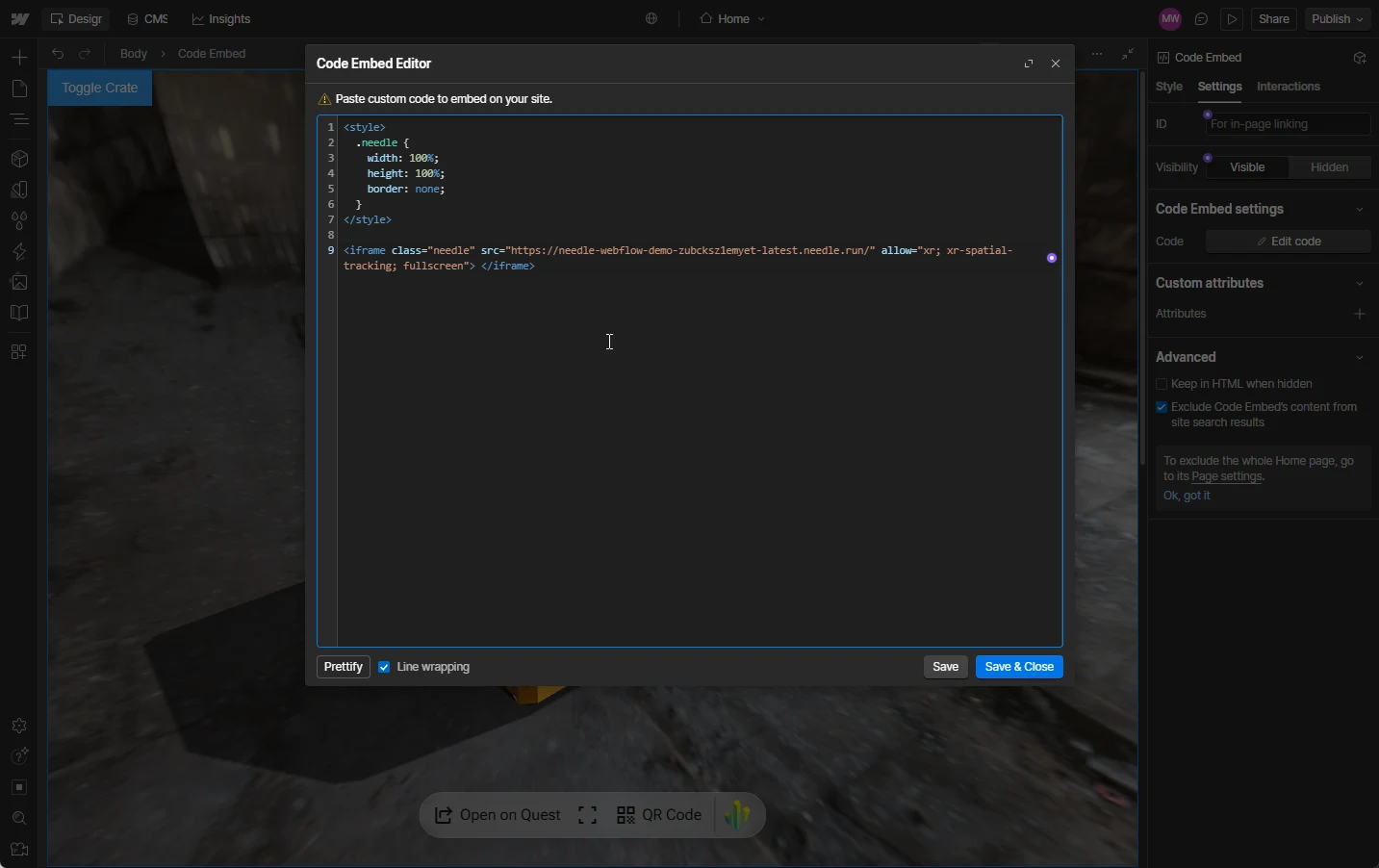
- On your page, drag in an Embed element (Add panel → search "code" → Code Embed) and paste:
<iframe
    src="https://your-project.needle.run/"
    allow="xr; xr-spatial-tracking; fullscreen"
    style="width: 100%; height: 600px; border: none;">
</iframe>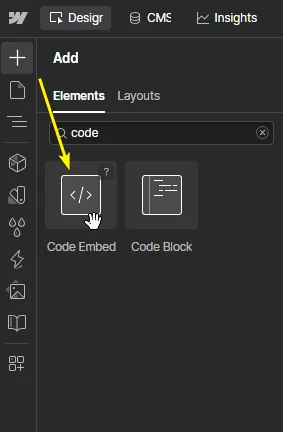
2. Trigger the scene from a Webflow element
Because an iframe is a separate page, the Webflow page and the scene talk to each other by passing messages (postMessage), with a small handler on each side.
Webflow side — in Page Settings → Custom Code → Head, send a message when a button (with the ID play-btn) is clicked:
<script type="module">
  document.addEventListener('DOMContentLoaded', () => {
    const frame = document.querySelector('iframe');
    document.getElementById('play-btn')?.addEventListener('click', () => {
      frame.contentWindow.postMessage({ type: 'openCrate' }, '*');
    });
  });
</script>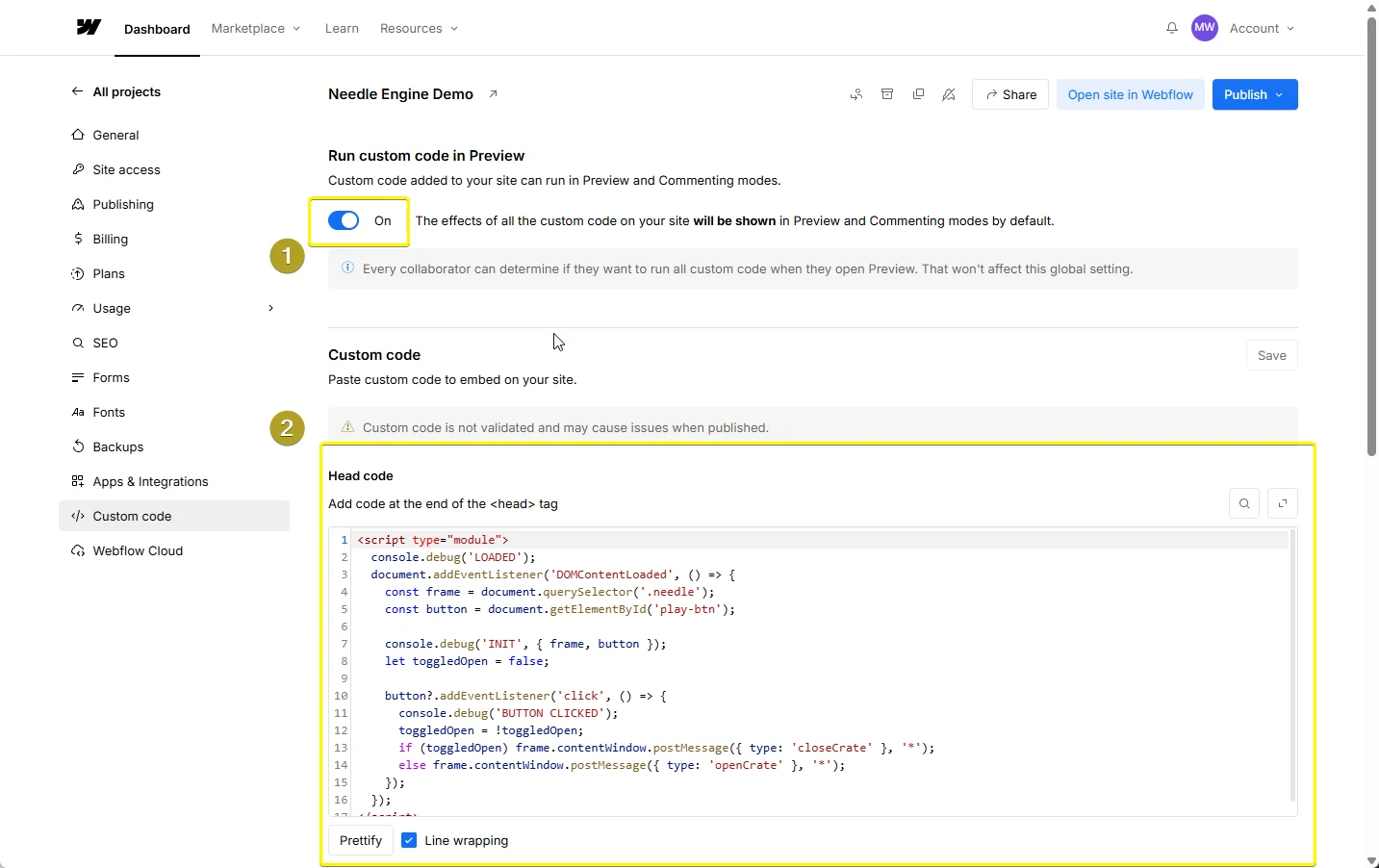
Needle project side — listen for that message and play an animation:
import { onStart, Animator } from "@needle-tools/engine";

onStart(ctx => {
    window.addEventListener("message", (e) => {
        if (e.data?.type === "openCrate") {
            ctx.scene.getComponentInChildren(Animator)?.play("Crate Open");
        }
    });
});
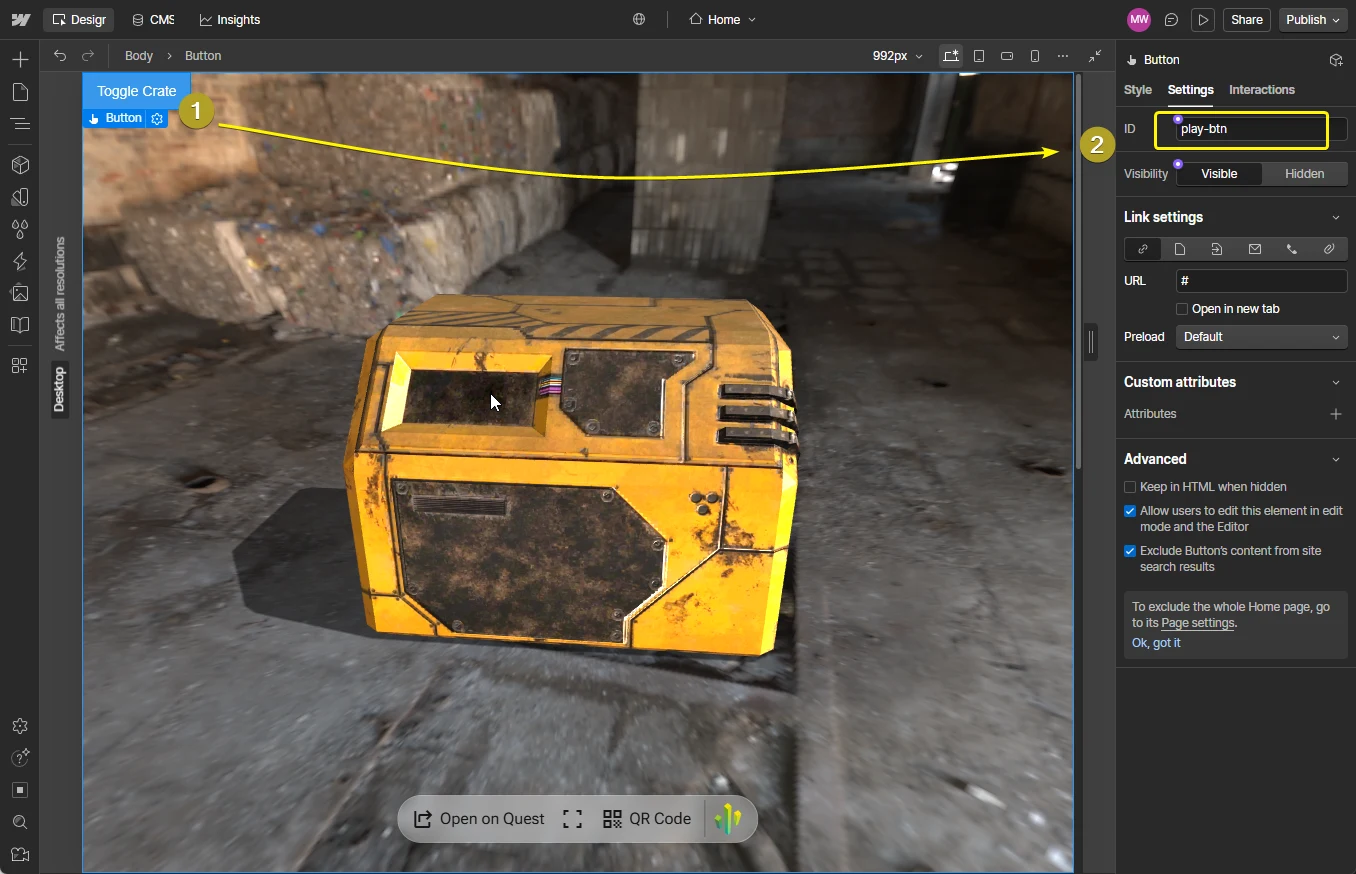
Giving an element an ID
Select the element, open Element Settings → ID, and set e.g. play-btn — then target it with getElementById. Webflow blocks inline onclick attributes, so always wire up clicks in code like this.
3. Embed inline with <needle-app> (recommended for interaction)
For tighter integration — Webflow elements driving the scene directly, or scrollytelling — embed the scene inside the page instead of in an iframe. Every production build emits a needle-app.js loader; add it with a Code Embed element:
<script type="module" src="https://your-project.needle.run/needle-app.js"></script>
<needle-app src="https://your-project.needle.run/assets/MyScene.glb"></needle-app>
Because the scene now shares the page, you can call into it directly — no postMessage needed:
<script type="module">
  import { onStart, Animator } from "https://your-project.needle.run/needle-app.js";
  onStart(ctx => {
    document.getElementById("play-btn")?.addEventListener("click", () => {
      ctx.scene.getComponentInChildren(Animator)?.play("Crate Open");
    });
  });
</script>
Requirements
- Use the full URL to your main
.glbinsrc. A relative path would look for the file on your Webflow domain instead of where it's hosted. - The files must be served with cross-origin (CORS) headers. Needle Cloud (
*.needle.run) does this automatically. - Custom code runs on the published site (and in Preview), not in the Webflow Designer canvas — so test on your
.webflow.iosite. - Importing the engine API from
needle-app.jsrequires Needle Engine 5.1 or newer.
See your custom code in Preview
By default Webflow only runs custom code on the published site. To also see it in Preview (the eye icon) while you build, open Site Settings → Custom Code and switch "Run custom code in Preview" to ON. (Custom code still never runs in the Designer canvas itself — that's expected.)
Scrollytelling
Scroll-driven 3D is a great fit for <needle-app>. Because the scene lives in the page, the ScrollFollow component reads the Webflow page's own scroll position — letting you drive timelines, animations, camera paths and more as the visitor scrolls. Set ScrollFollow up in Unity or Blender, then embed with <needle-app> as shown above.
See the live scrollytelling page from the demo.
There are more integration options
See Embedding a Needle project into an existing website for more options and details.